
Handle overflowing content
When content is larger than its box, it can overflow, be clipped or become scrollable. Overflow controls choose this behaviour; they do not shorten the text.
1. Identify what is too large
Select the affected element in Layers and inspect its dimensions in Size. A short height can hide a button after the text. A large minimum width can make the whole element exceed its parent.
In a flexible layout, a child allowed to grow may remain taller than the requested height. Check its sizing behaviour before concluding that overflow is broken. Correct an accidental size first; clipping is not a solution for content that should remain readable.
2. Compare the behaviours
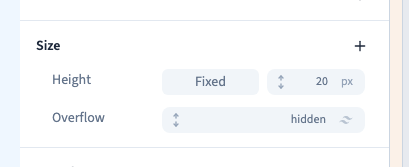
In Expert, add Overflow under Size when it is offered for the selected element, then open its choices.
| Value | Behaviour |
|---|---|
| visible | Content can appear outside the box |
| hidden | Overflowing content is clipped without scrolling |
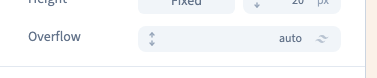
| auto | Content can scroll when it exceeds the box |
| scroll | The box uses scrolling behaviour |
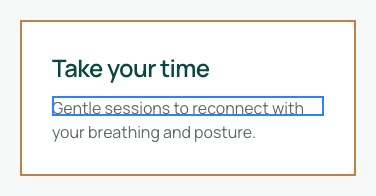
The English demonstration deliberately limits a paragraph to 20 px in height. It compares clipped text with real scrolling and then visible overflow. The text itself is preserved.
Could not play. Try the video controls.
3. Test actual scrolling
Choose auto, place the pointer over the element in the preview and scroll its content. Check that the final text and any actions can be reached.
If nothing scrolls, the content may already fit. Without a size limit, the box may simply grow. Axis-specific values prefixed with x- act horizontally and y- vertically; check the selected axis.
4. Choose a comfortable solution
A small scrollable area can suit a secondary list. Main page text is usually easier to read on mobile when its box can grow. Avoid clipping a price, action or essential information.
Availability depends on the element. If Overflow is not offered for a selected image, select a compatible content element in Layers. It can also be absent on a structural container.
5. Remove the value and check again
Remove the overflow setting to compare with the template's behaviour. Check a narrow screen and a version with longer text. Verify the published site too before relying on a scrollable area in the final page.