
Select an element with Layers
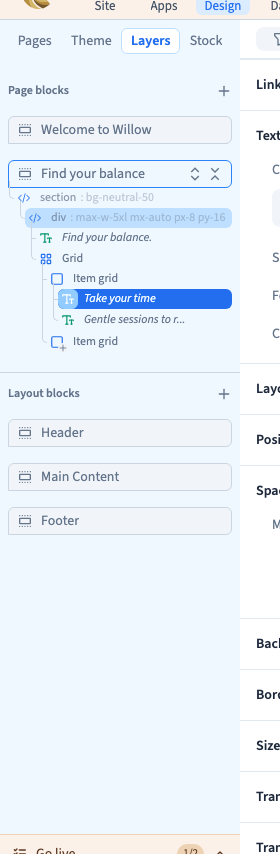
Layers shows the structure of the page. Use it when a click selects the wrong element, a target is hidden or you need its container.
1. Open Layers
Switch to Expert and open Layers in Design. The list belongs to the current page. Check the page and content language before looking for a target.
2. Understand the tree
Indented elements are children of the element above them. The parent organises the group; a child may be text, an image or a button. Expand containers gradually rather than guessing at a row.
Could not play. Try the video controls.
3. Select the right row
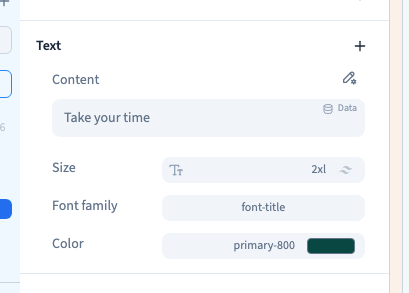
Click an element in the tree and inspect its outline in the preview and its settings. To change the font, select the text. To arrange several elements, select their container. Return to the parent if expected controls are missing.
4. Recognise elements
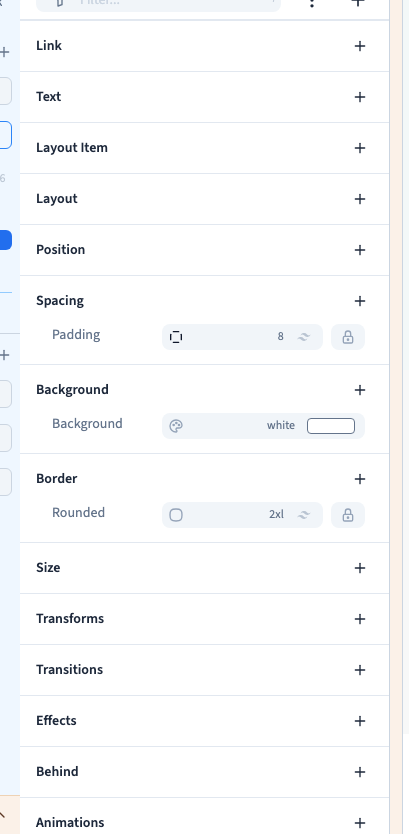
The internal name and type help identify the target. An internal name is not necessarily text shown to visitors. A conditionally hidden element can be easier to find in the tree than by clicking. Check its visibility before concluding it was deleted.
5. Check selection in both directions
Click the element in the preview and find its place in Layers. This helps explain the parent-child relationship. Selection alone does not change the site; moving or deleting an element does. Keep those actions distinct.