
Choose cursor, text selection and pointer behaviour
1. Find the interaction settings
In Design, switch to Expert and select one element. Open Mouse & Interactivity and add Cursor, User Select or Pointer Events. Check the selected element in Layers before applying a setting to a parent.
2. Show the cursor that fits the action
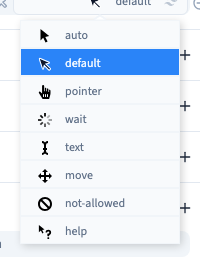
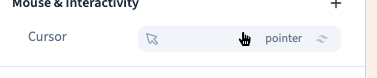
Choose Pointer to give a clickable control the familiar hand cursor. Keep a text cursor for editable text and reserve Grab for something the visitor can actually drag. A cursor changes the visual cue. Set the link or action separately.
Could not play. Try the video controls.
3. Let visitors select useful text
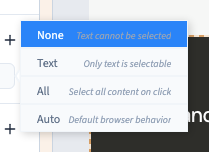
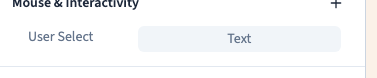
Use User Select > Text for content people may want to copy. All selects the whole element when selection starts there. None prevents selection on the selected element. Try selecting text as a visitor before applying it to a large section.
Could not play. Try the video controls.
4. Let the pointer pass through a decoration
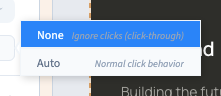
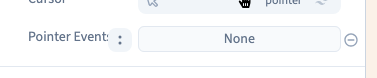
Set Pointer Events > None on a decorative element covering a control. The element stops receiving pointer events. Auto restores normal pointer handling. Taking away pointer events does not remove a link from keyboard navigation. The example checks that Enter can still open the link even when the pointer cannot click it.
Could not play. Try the video controls.
5. Check the page before publishing to visitors
Save and test with a mouse, touch and the keyboard. Check both the element you edited and any controls behind it. Remove the setting in Mouse & Interactivity or use Undo if you need to revert it.