
Choose a type and default for a block variable
1. Open the block context
In Design, select an element in Expert. Open its workflow from Events, switch to Block context and choose Add a variable. The variable belongs to the block.
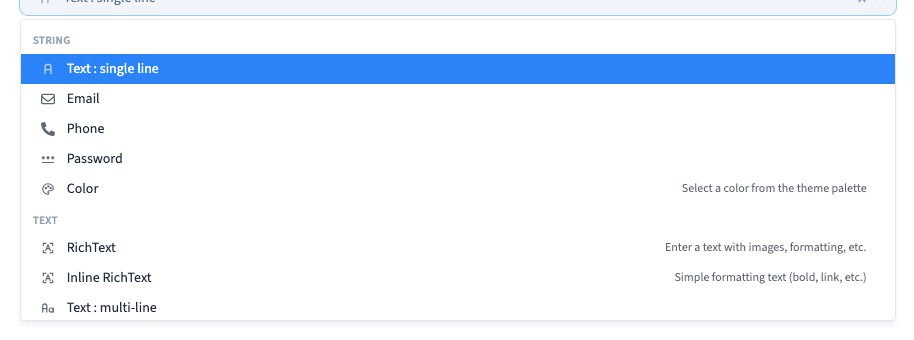
2. Choose a type based on the value
Use text for a welcome message, a number for a quantity, a switch for yes or no, or a choice for a predefined option. Inspect Type for other formats. The type can change both the value editor and the available options. After changing it, check the default again.
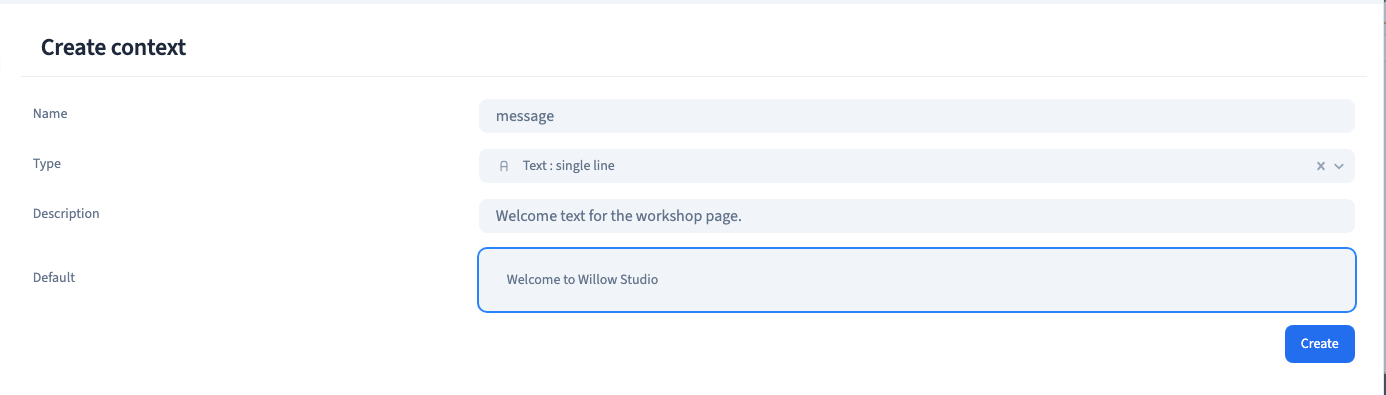
3. Name the variable and give it a default
Use a stable Name, such as message. The editor normalizes spaces and characters in the identifier, so check the saved name before using it in an action. Write a Description that helps another editor understand the variable. Put the value visitors should see first in Default. Choose Create, then save the design.
Could not play. Try the video controls.
4. Choose a structure when several values belong together
Use a list for repeated items and a group for different fields that belong together. Add and order values through the controls for that type. For choices, provide distinct options.
5. Allow translation when available
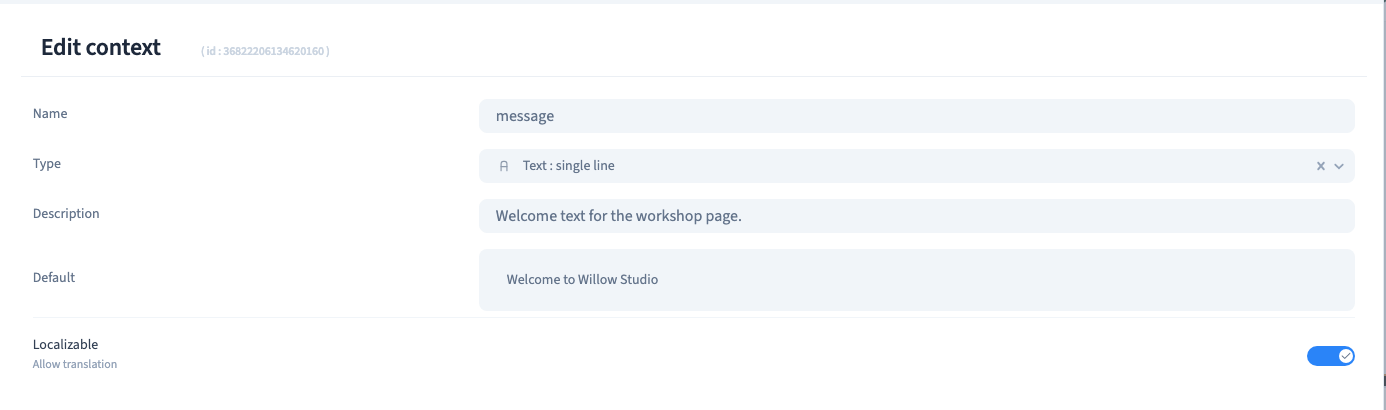
Reopen a saved text variable and turn on Allow translation under Localizable if each site language needs a different value. Enter the translations through the site’s language workflow. Save and reopen the variable to check the setting.