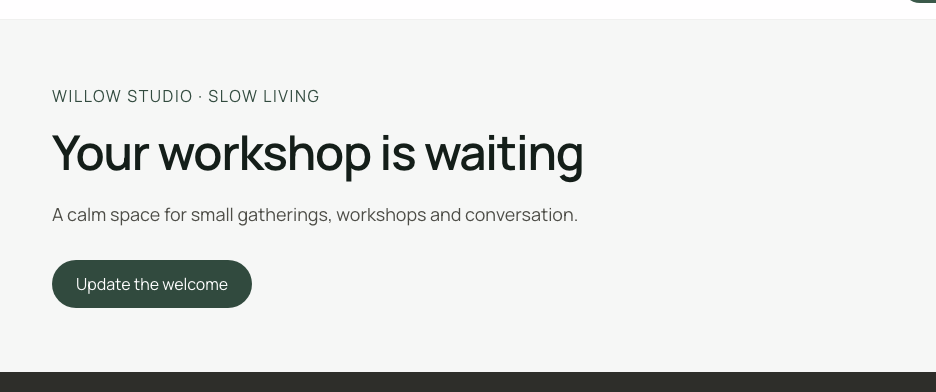
Show a block variable and change it on click
1. Create the starting value
Open a workflow on a button in the block and go to Block context. Add a text variable named message with the default Welcome to Willow Studio. Save before using it in a workflow. Keep the heading and the button in the same block.
Could not play. Try the video controls.
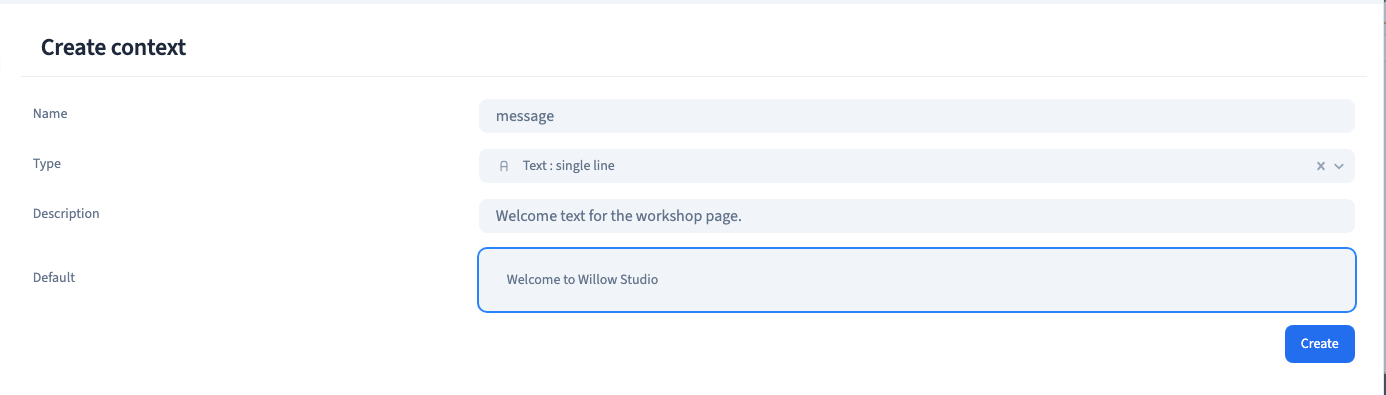
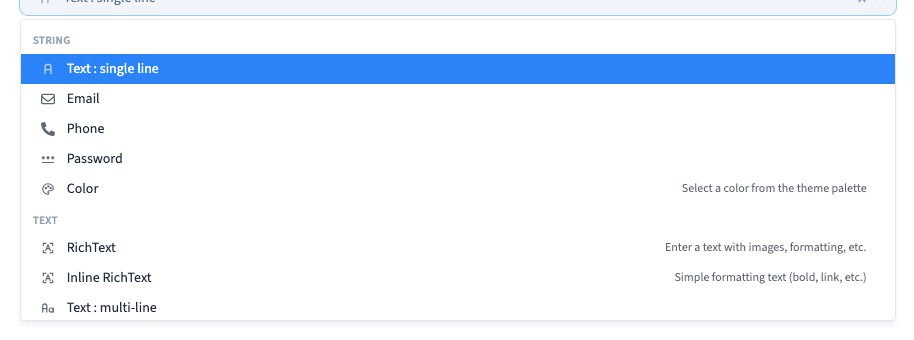
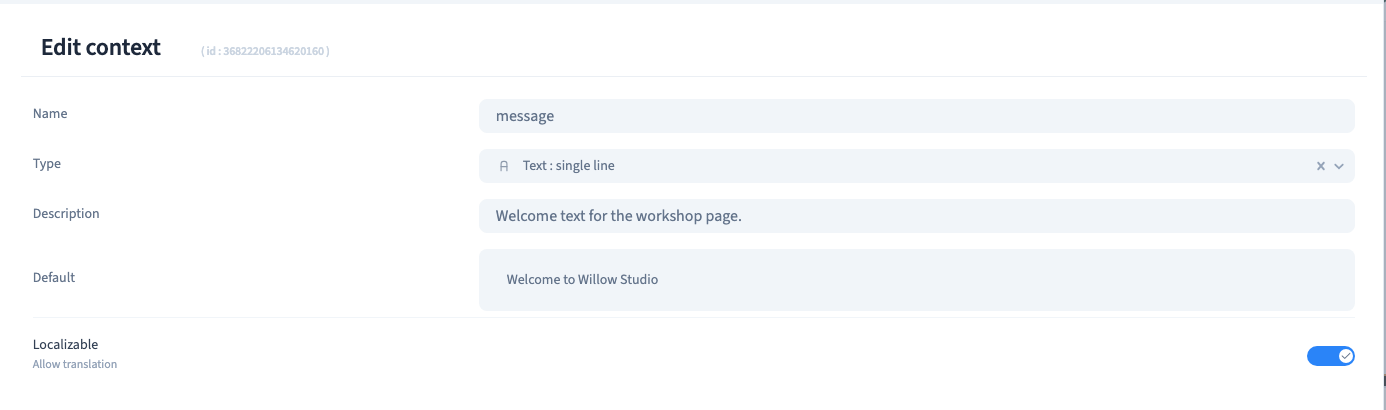
See also Choose a type and default for a block variable.
2. Link a click to the change
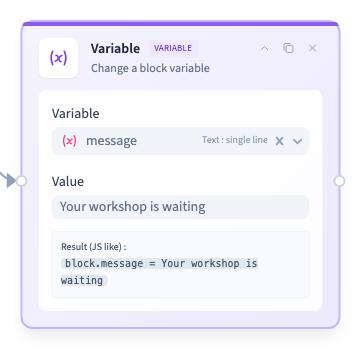
In the button’s click workflow, choose Add node > Variables / State > Variable Change. Select message, set the value to Your workshop is waiting, and join the Event output to the Variable input. Close the graph and save.
Could not play. Try the video controls.
3. Show the variable in your heading
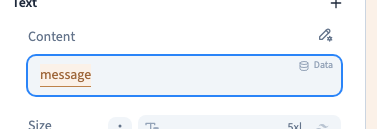
Select the heading. In the Content editor, type @ and choose message from the available data. When you replace existing text, check that the heading shows the variable’s default value in the preview. Save again.
Could not play. Try the video controls.
4. Test the change as a visitor
Publish to a private preview. Before clicking, check the default heading. Click Update the welcome and check the new heading. Reload and confirm that the default returns. The example is page behaviour. Use a suitable storage feature when a change needs to survive a reload.
Could not play. Try the video controls.