
Add a section or an element
A section fills part of a page, such as an introduction or a list of questions. An element is smaller: a heading, paragraph, image or button. Decide which one you need before opening the library.
1. Choose a ready-made section
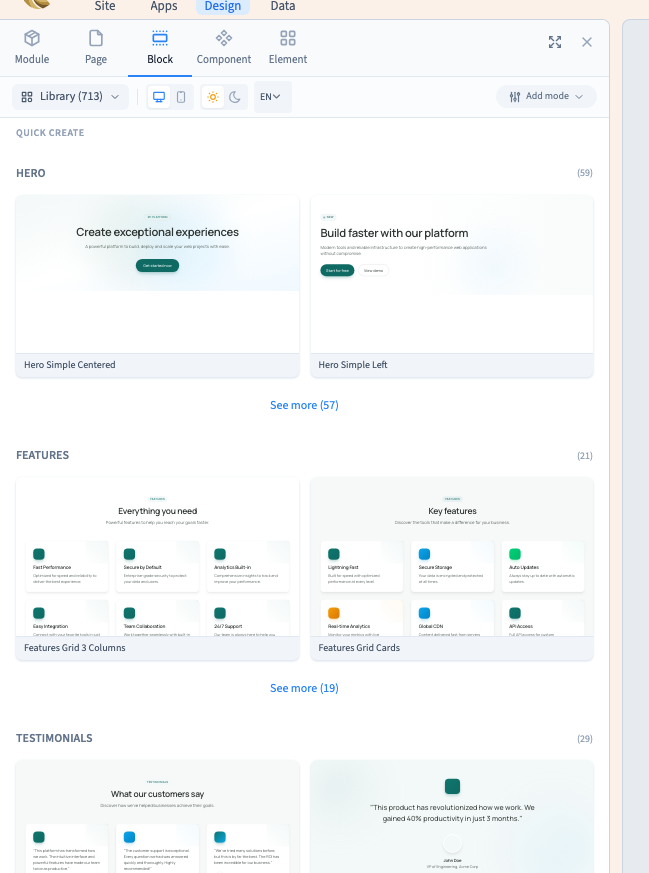
Open Add, then Block. Browse the layouts and their previews. Choose one that suits your content, then replace its example words and images. The library uses your site's theme to help the new section fit in.
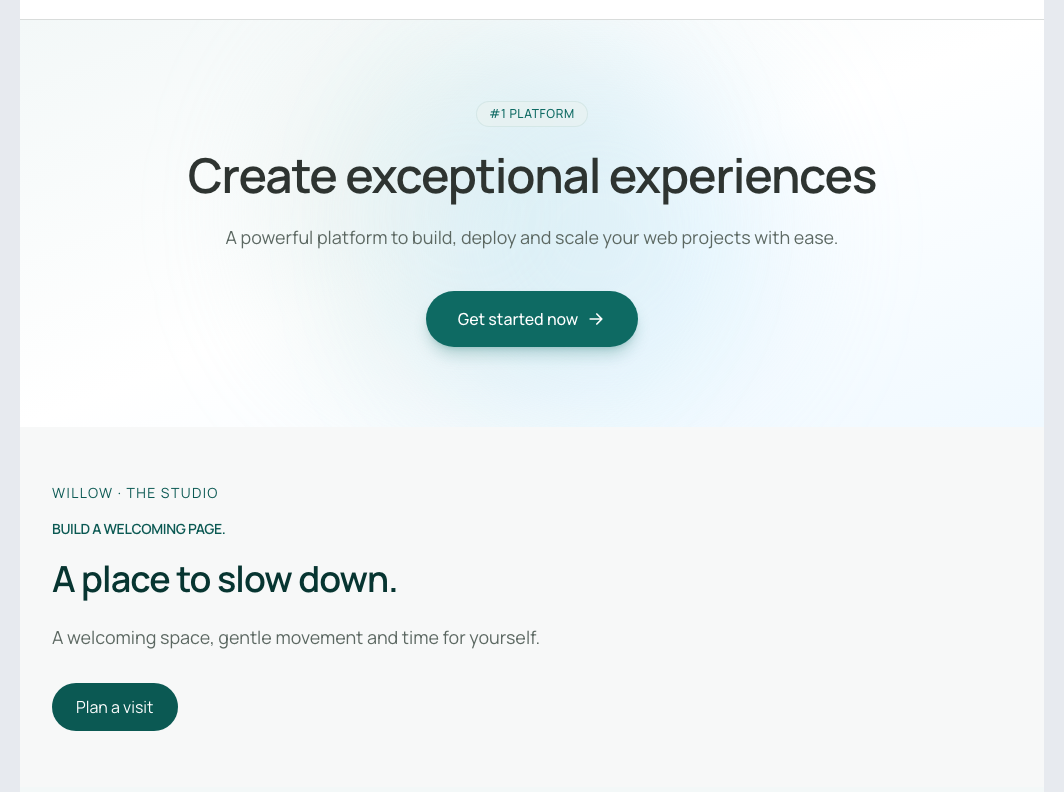
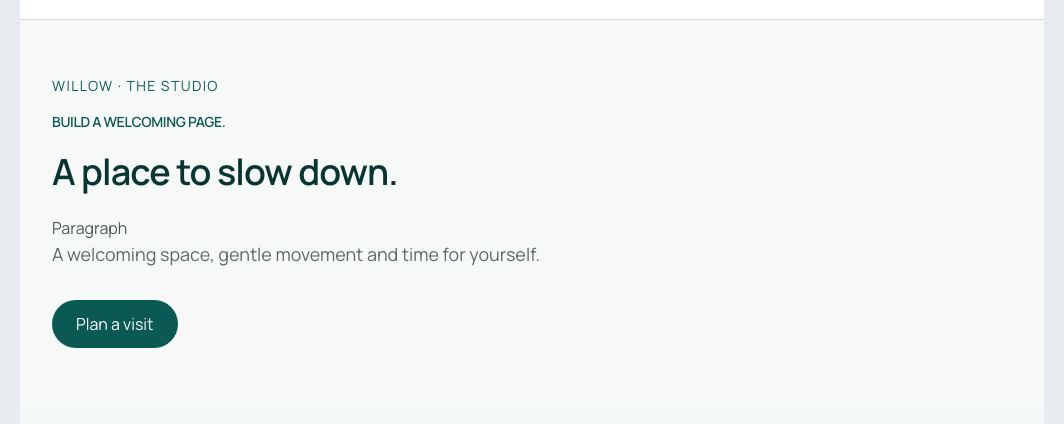
The Willow Studio example adds an introduction to a page that already presents the studio and its sessions. A template name identifies its layout; it does not determine your site's language.
2. Insert before or after a section
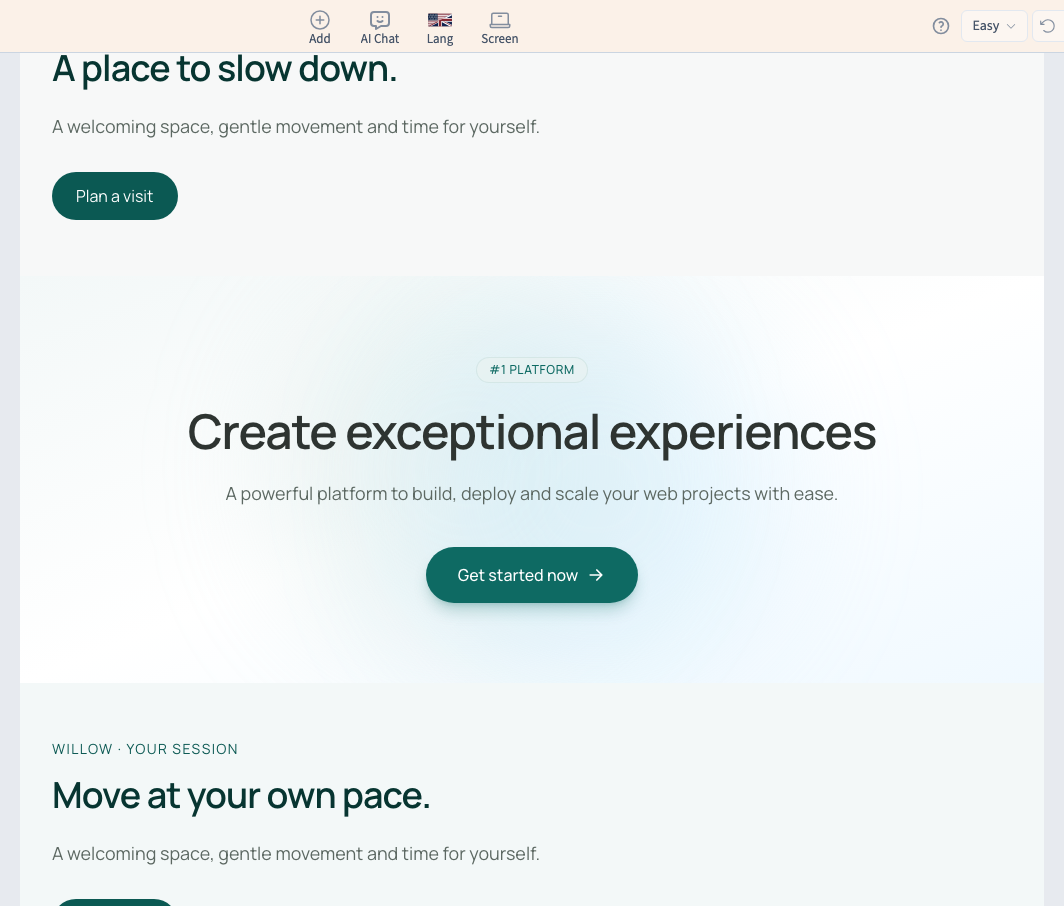
Hover over the existing section that will be your reference. Choose Add block here above it to insert before, or below it to insert after. Select the layout, close the library and compare its position with its neighbours. Save when the order is right.
The toolbar's Add button is convenient for browsing. The insertion points inside the page make the intended position clearer. Use them when the order matters. The recording also undoes a saved addition before trying the other position.
Could not play. Try the video controls.
3. Add a simple element
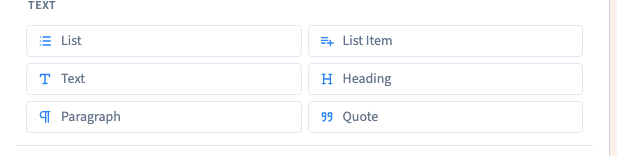
Open Add > Element, then select the reference element in the page. In Easy, choose Paragraph, enter your words in the editor and leave text editing. Check its position within the section.
A paragraph adds content inside an existing section; it does not create another page section. The demonstration adds a short explanation beside “A place to slow down.” and preserves the two existing sections.
Use the element context menu and Layers when you need a different position, a specific parent container or a move. These are visual commands.
Could not play. Try the video controls.
4. Connect a section to the CMS
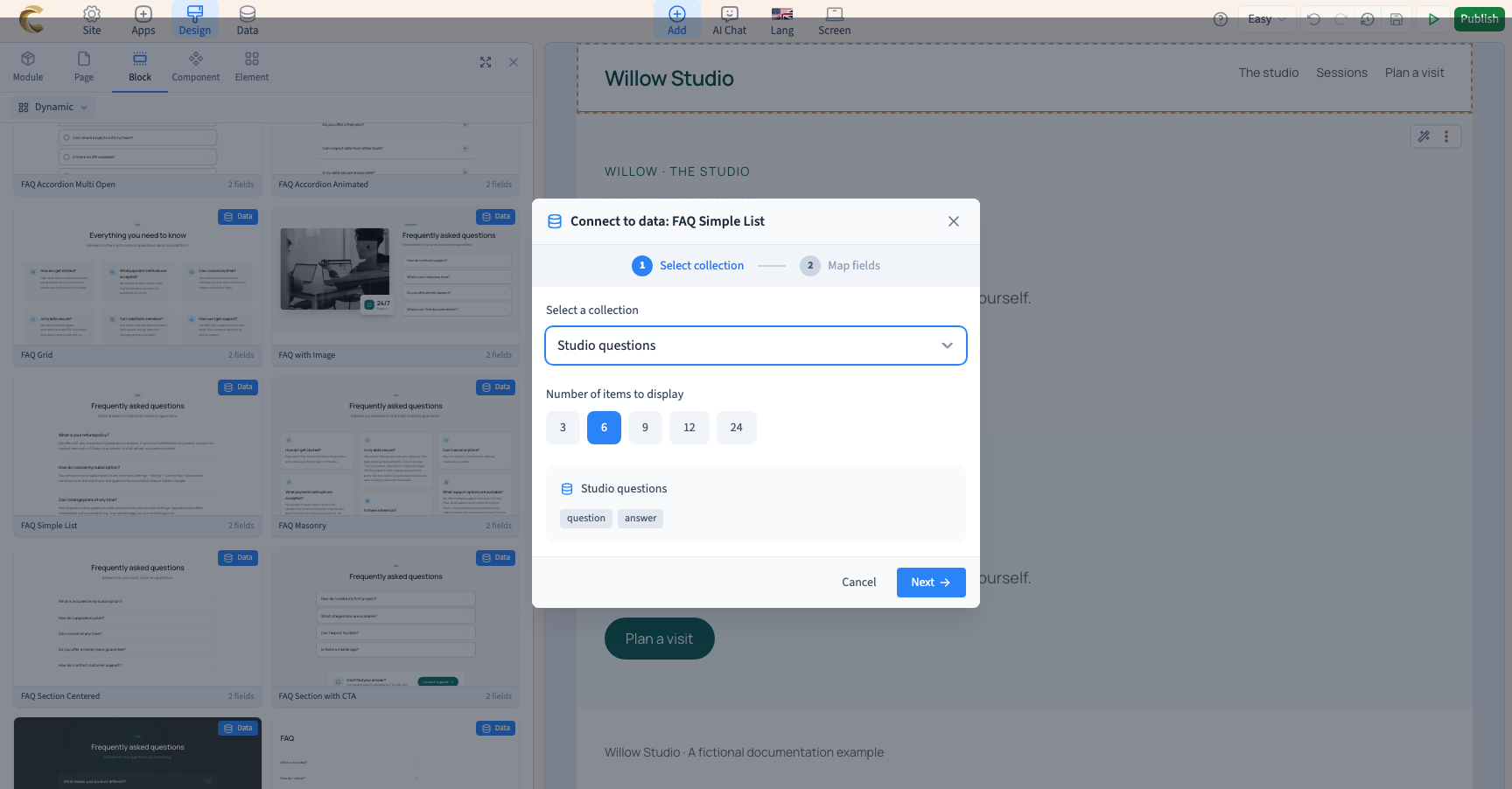
Prepare the collection and its records first. Then open Add > Block, choose the Dynamic source and select a suitable layout, such as FAQ Simple List.
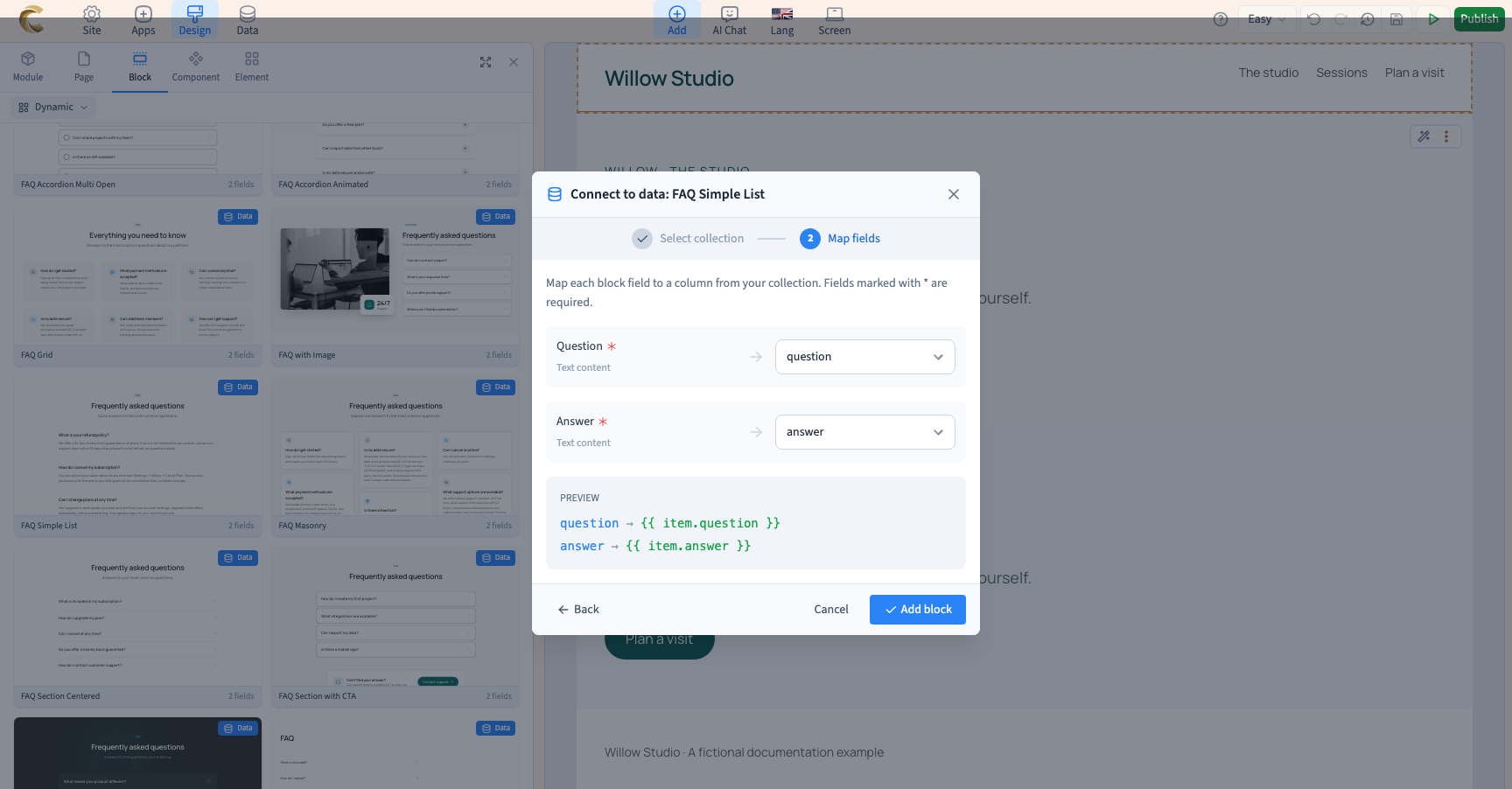
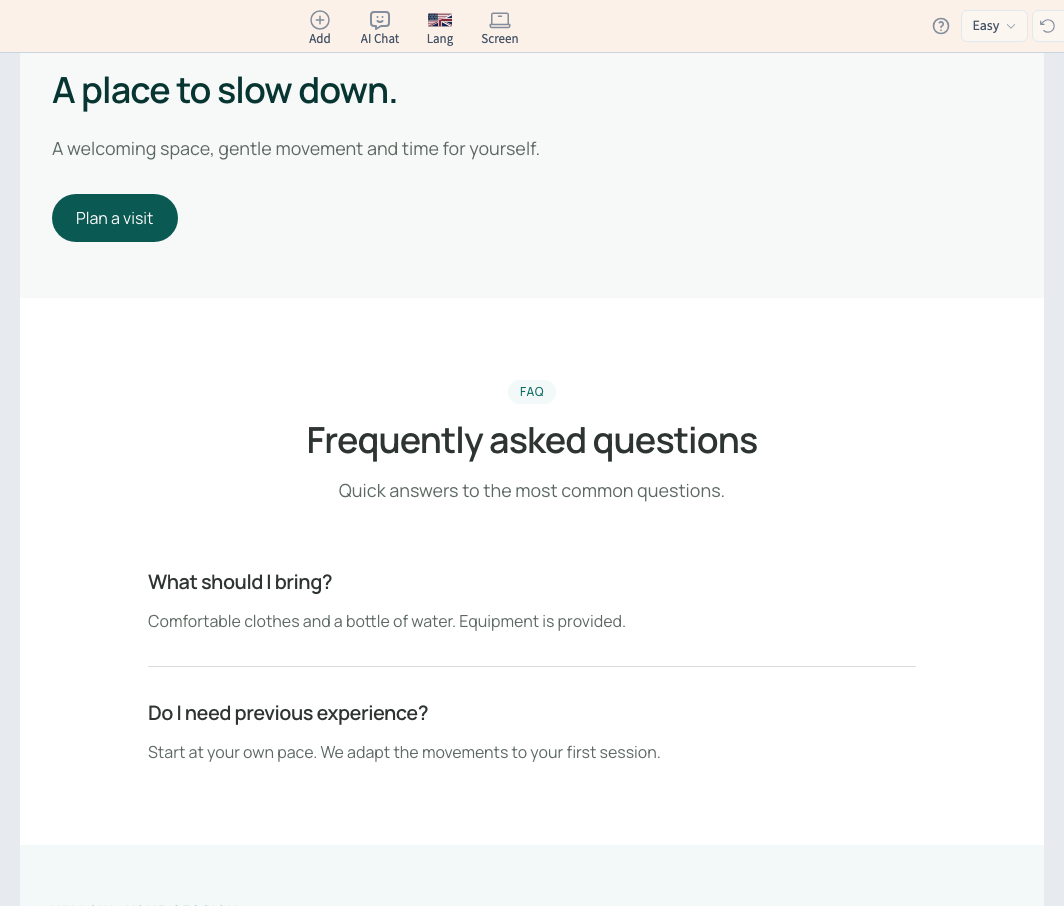
Choose the collection and Next. Match each layout slot to its collection field. Here, the question reads question and the answer reads answer. Review the associations, choose Add block, inspect the actual content and save.
Your field names may differ. Mapping tells the section where to read; it does not rename fields or replace records. A listing displays several records. A detail page displays one record in its page context. A question list does not need a separate detail page for every answer.
Could not play. Try the video controls.
5. Personalise and check
Replace example content, check button destinations and adjust appearance in the visual panel. For a connected section, edit the words in the collection and the presentation on the page.
Save, reload and inspect staging at desktop and phone widths. Check order, long content, readability and links before publishing.
6. Undo an addition
Use the builder's Undo command if the addition does not fit. It returns the editable page to an earlier state. If you had already published the change, check and republish the desired version afterwards: editor history and the live version are separate.
Continue
Organise page sections · Use the element context menu · Understand element structure