
Organise and reuse page sections
A page contains sections such as an introduction, services or a contact form. You can reorder them without rewriting their content, or duplicate a useful layout for another part of the page.
The demonstration works in Easy with two Willow Studio sections.
1. Open the correct section's actions
Hover over the section and open its action menu. Check the surrounding content before choosing a command. These actions affect the whole section, even when the pointer happens to be over a single heading.
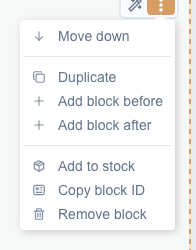
2. Move a section up or down
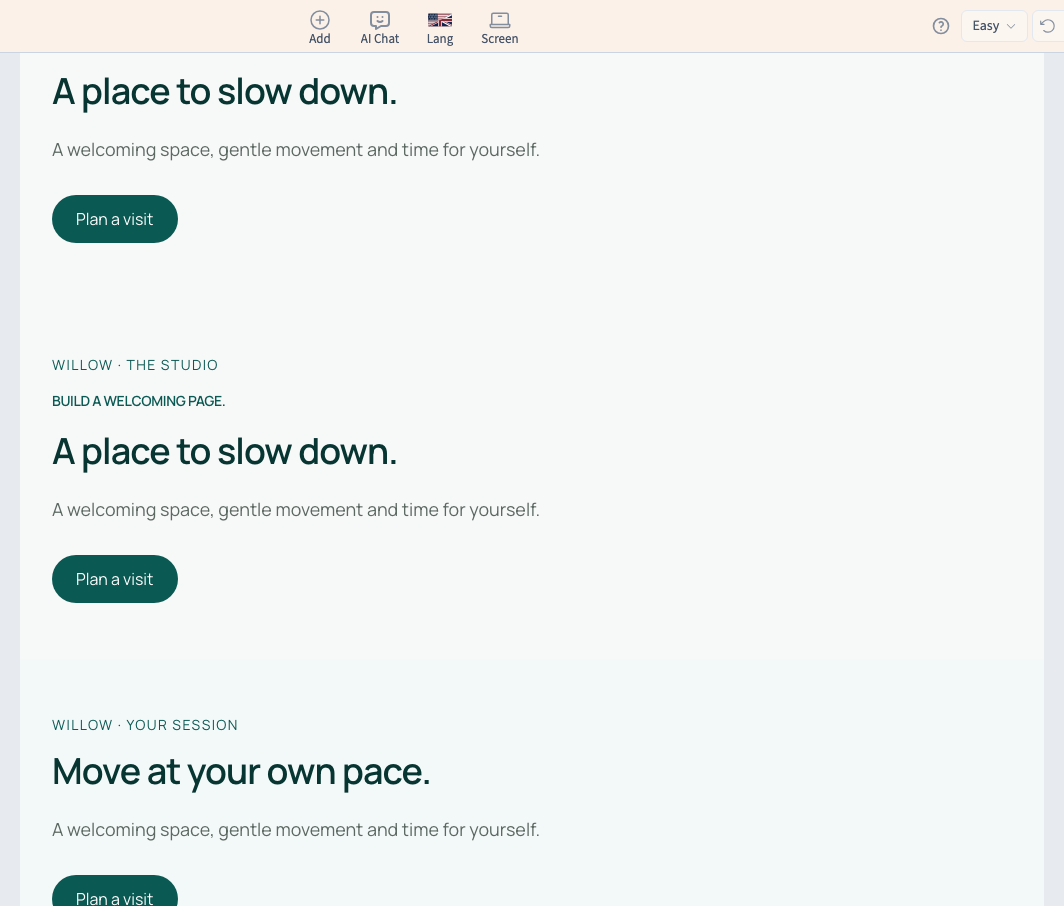
Choose Move up or Move down to move it by one position. The example moves the studio introduction after the session section and preserves their text and links.
A first section cannot move further up, and a last section cannot move further down; the corresponding command is absent. Save and reload to check the order. This is the page order on phones too, rather than a separate order for each screen width.
Could not play. Try the video controls.
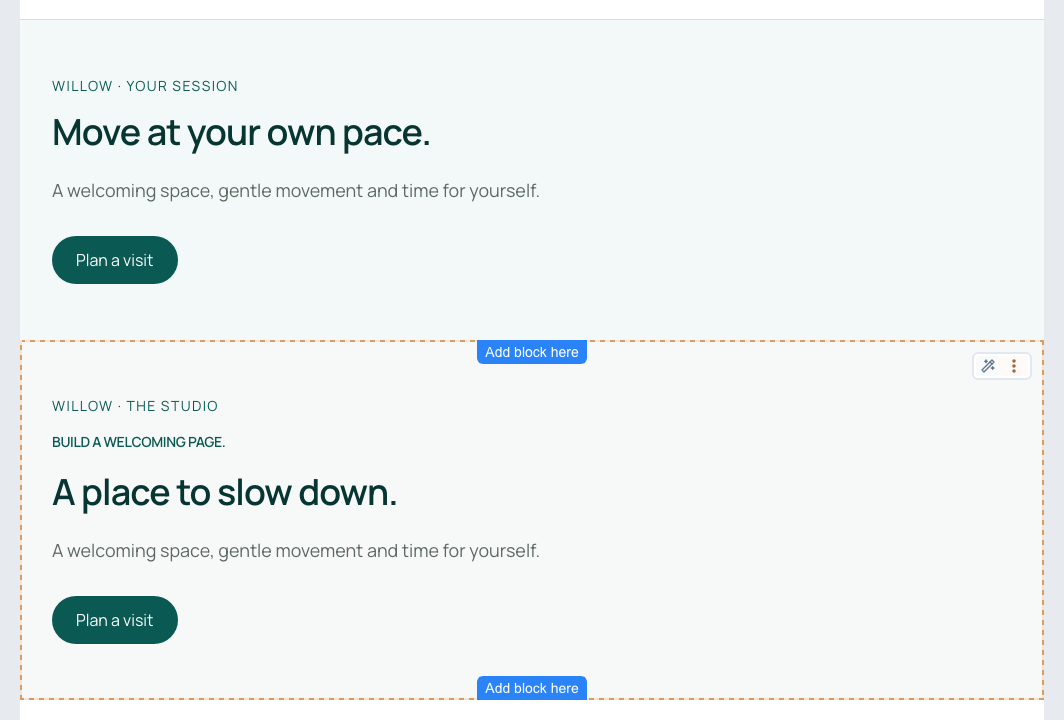
3. Duplicate a section
Choose Duplicate. A copy appears after the original. Replace its content to prepare another section with a consistent layout.
Duplication and synchronised reuse serve different needs. Use a component when several uses should follow one shared model. A duplicate should not be mistaken for a promise that future changes will propagate to both copies.
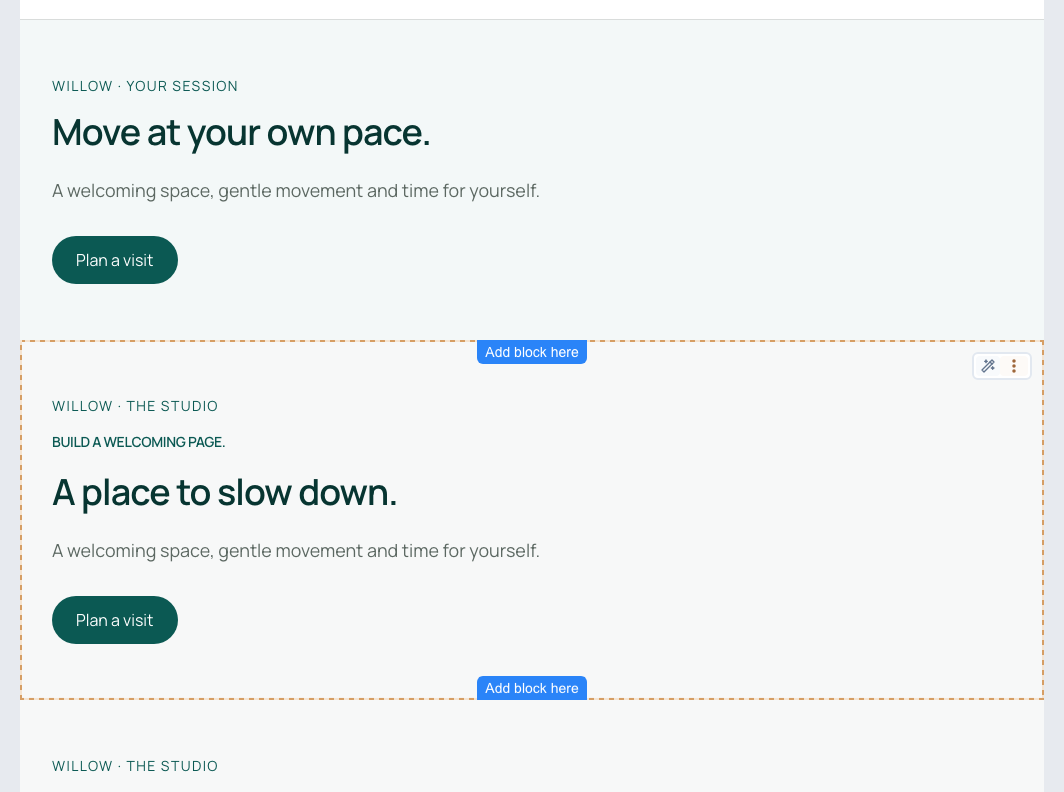
4. Remove a section
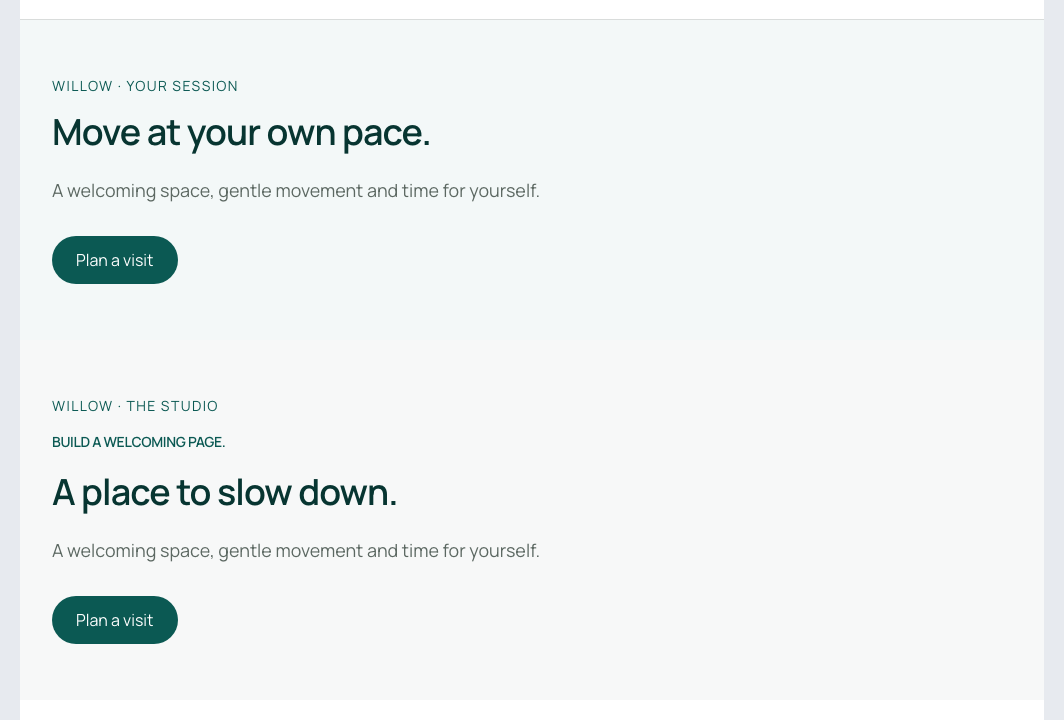
Open its actions and choose Remove block. Check that the intended section disappears and its neighbours remain. The recording removes the extra copy and retains a single studio section.
Use Undo promptly if you remove the wrong section. Save, reload and inspect the result before publishing. If an unwanted change was already published, publish the corrected page as well.
5. Keep a section in a stock
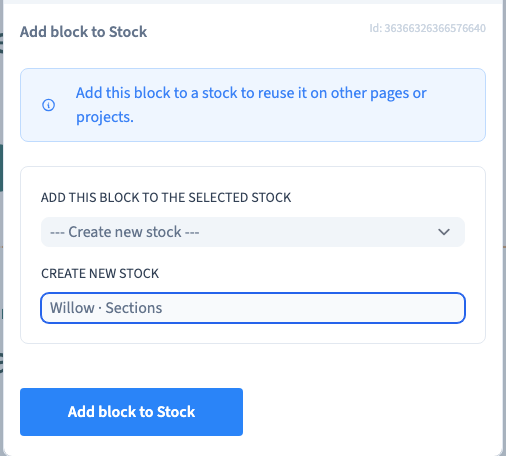
Choose Add to stock. Select a stock, or create one with a useful name, then confirm. A stock is a library of reusable designs in the current site. Adding a section to it does not remove the original from the page.
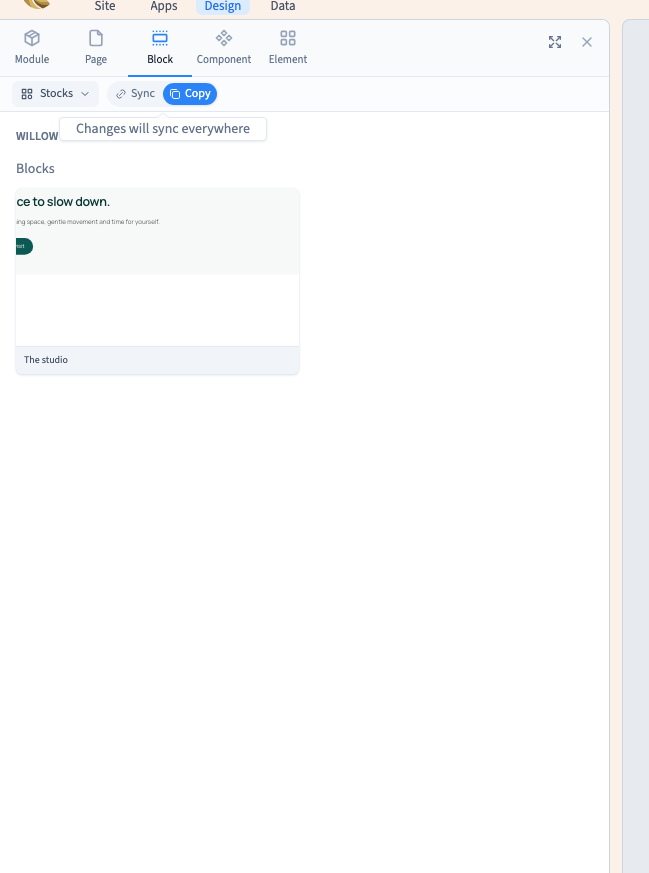
To reuse it, open Add > Block, choose the Stocks source and select its card. The demonstration chooses Copy and checks the new section after saving and reloading. Check the insertion position and replace any words or links that should differ.
Stocks shown here belong to the open site. They do not grant project access or automatically share designs between unrelated projects. Community publication settings are reserved to Communik administration; a private stock is not a public library.
Could not play. Try the video controls.
6. Check the visitor result
Inspect the published page on desktop and phone. Compare section order, duplicated content and links. Keep one clear introduction and remove temporary copies before handing the page to visitors.