
Control letter case, decorations, wrapping and lists
In Expert, the Text group offers letter case, decorations and line handling. Add a missing setting with +. These controls apply to the whole element; inline formatting is for selected words.
1. Compare letter case
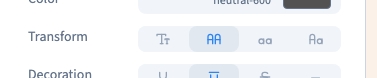
Add Transform and choose uppercase, lowercase, capitalised words or normal case. This changes the display without rewriting the original text.
The video compares uppercase with normal case. Capitals can help a short label stand out, but a long paragraph is usually easier to read in its original case.
Could not play. Try the video controls.
2. Add a decoration
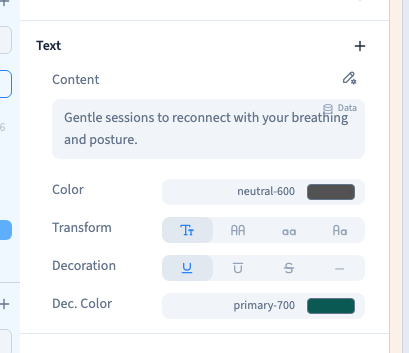
Add Decoration and compare underline, overline, strikethrough or no decoration. Add decoration colour to change the line without changing the letters' colour.
A decorative underline does not create a link. Configure a destination when you want the words to be clickable.
3. Allow line wrapping
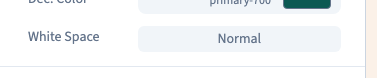
White space controls how spaces and line breaks are handled.
| Choice | Behaviour |
|---|---|
| Normal | Consecutive spaces collapse and text can wrap |
| No Wrap | Text stays on one line, even when it becomes too long |
| Preserve | Spaces and explicit breaks are kept, without automatic wrapping |
| Pre Line | Explicit breaks are kept; consecutive spaces collapse |
| Pre Wrap | Spaces and explicit breaks are kept, with wrapping |
The demonstration compares No Wrap and Normal. A forced single line can overflow on a phone. Reserve it for short content whose available width you have checked.
4. Keep a long word inside its column
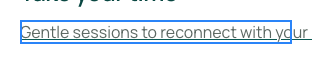
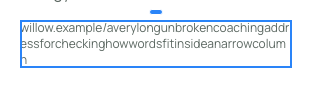
Add Word break. Break Words allows an overlong word to break when it cannot fit. Break All allows more aggressive breaks between characters. Normal follows the language's usual behaviour; Keep All prevents certain breaks, particularly where that makes sense for the script being used.
The demonstration uses a fictional address with one long uninterrupted word. It first shows the overflow, then verifies that Break Words keeps it inside its column. This does not fix a container that is too wide or a No Wrap setting that prevents the lines from reforming.

5. Format a real list
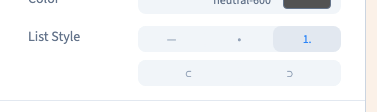
Create a real list in a rich-text editor, rather than typing a dash before each sentence. List Style in the style panel changes the marker and its position on a list; it does not turn an ordinary paragraph into a list.
Select the entire list in Layers. Choose bullets, numbering or no marker. Inside/outside controls the marker's position relative to the text; an outside marker needs room on the left.
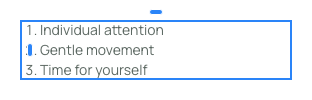
The video numbers three existing list items and verifies that all their words remain. Selecting one item in the canvas is not the same as selecting the list container.
6. Verify and save
Check narrow widths, especially long addresses and lists. Save and reload, then review the visitor preview.