
Format selected words in a text
A bold word can guide reading without changing an entire heading. Inline formats apply to your selection; the element's Text panel controls its overall appearance.
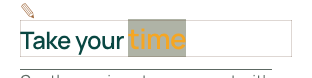
The demonstration uses Easy mode and selects only time in Take your time.
1. Select the words first
Click the text and enter editing. Select words with the pointer or with Shift and the arrow keys. The text toolbar appears nearby.
Without a selection, a command may prepare the format for the characters you type next. Check that the intended words are selected before applying a format.
Could not play. Try the video controls.
2. Combine useful accents
Use B and I for bold and italic. The format menu also offers underline and strikethrough. Choosing an active command again removes that format.
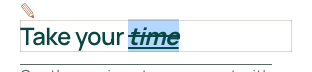
Underline and strikethrough can be combined. Keep these accents purposeful: underline can look like a link, while strikethrough usually signals something replaced or removed.
3. Clear local formatting
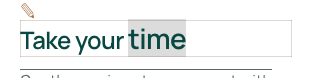
Select the words, open the format menu and choose Clear formatting. The characters remain while their local formatting is removed. The heading or paragraph still follows its overall builder settings.
This is a way to start fresh before another comparison. It does not delete text or reset the whole page.
4. Use superscript, subscript or letter case
The menu also offers Superscript, Subscript, Uppercase, Lowercase and Capitalize. These apply to the selected words. Superscript and subscript suit short notations, rather than whole paragraphs.
Changing presentation does not replace proofreading. Remove the relevant local formats to recover the element's general appearance.
Could not play. Try the video controls.
5. Compare size and colours
The format menu lets you set a size for selected words. Enter a value and confirm it. The recording compares 28 px with the neighbouring text.
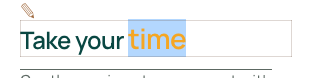
Text color changes the letters; Background highlights behind them. These serve different purposes. Clear formatting can remove these local choices. Keep readable contrast and check the result on a phone.
To change an entire heading, use its overall text settings instead.
Could not play. Try the video controls.
6. Link a few words
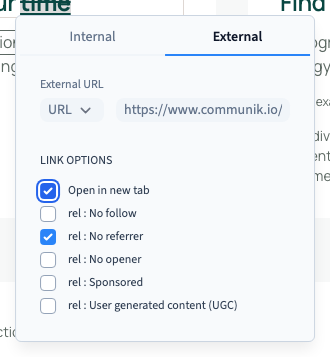
Select the intended words and use the link button in the text toolbar. Click the destination field and type a complete address. The example uses https://www.communik.io/documentation.
Enable Open in new tab when the destination should open separately. Leave it off to continue in the same tab. End editing and save. The words remain the same; only the selected part becomes a link.
To remove the link, edit the text again, select its linked words and use the link command again. Check that the words remain and save. A link's destination is separate from bold, colour or underline.
Could not play. Try the video controls.
7. Reload and check the visitor experience
After saving, reload and inspect the words, local formats, destination and new-tab choice. The recording verifies the stored heading, combined decorations and link options after reload.
Check the published visitor experience on desktop and phone as well. A saved editor setting and a published page are different checks. For multilingual content, review each language and ensure an edit has not changed the other language's words.

Continue
Edit a heading or paragraph · Change the whole element's readability