
Style rich-text content and manage variants
Rich content combines headings, paragraphs, links, lists and other elements. The theme gives these a common presentation without editing every block separately.
Only content using that rich-text style is affected. An ordinary page heading can have independent settings.
1. Open the rich-text preview
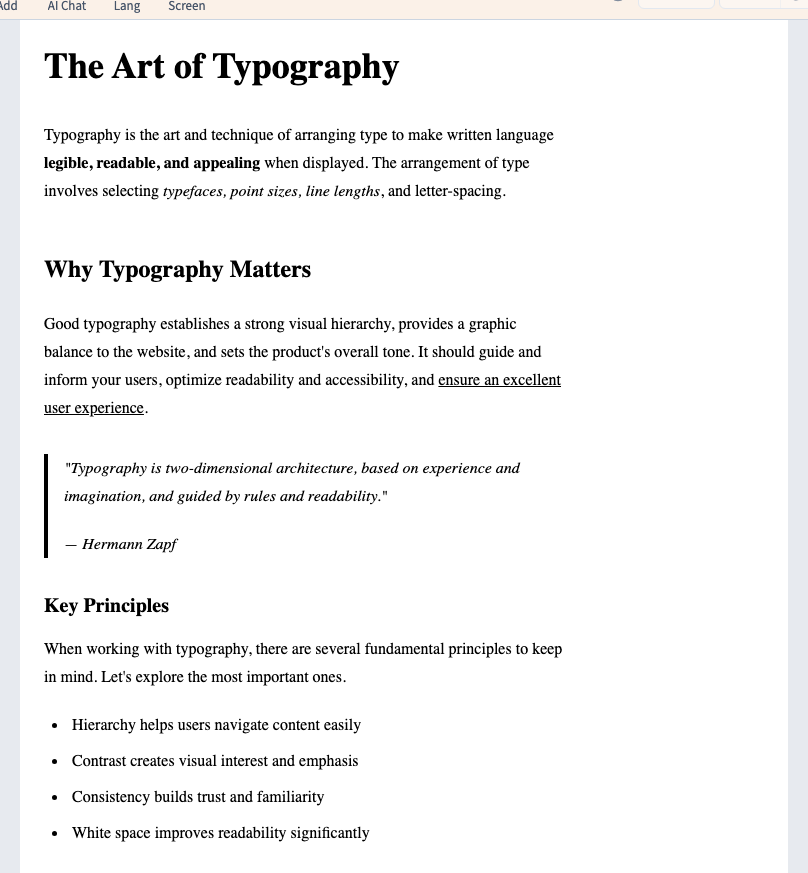
In Design, open Theme, then Prose / Typography and choose Show preview. The sample contains headings, paragraphs, links and lists.
This is a style sample, not your page's actual article content. Hide preview returns to the page.
Could not play. Try the video controls.
2. Style headings and ordinary text
Global controls the basic width, size, line height, colour and family. Under Headings, shared heading settings coexist with H1, H2, H3 and H4 overrides.
H1 is the main heading; H2 groups major sections and H3/H4 organise subsections. Making an H2 larger does not turn it into an H1.
The recording changes H1 to 52 px and verifies the sample. For paragraphs, begin with Global. Other elements also includes Paragraph, including its margins, and + offers further compatible settings.

3. Give links and lists a clear appearance
Expand Links to choose colour, decoration and weight. Keep a visible link cue such as underline; colour alone can be difficult to distinguish. Test normal and hover values when conditions are available.
Under Lists, distinguish unordered list, ordered list and list item. Marker and position belong to the list; item margins space its entries. Choose the appropriate list type in the actual content as well: styling does not replace its structure.
4. Create and identify variants
A variant is another rich-text presentation, for example for editorial articles and help pages. Choose Add variant, give it a name and confirm. Select the right variant before editing.
Changing the active variant selects what you are editing; it does not automatically assign that variant to every rich field on the site. Hover a variant for Rename or Delete. Check its users before deleting. The default variant cannot be deleted through this command.
5. Apply a preset to the active variant
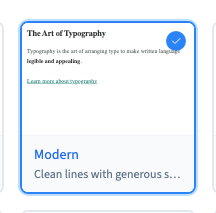
Choose Presets, select a proposal and click Apply. Unlike the site's predefined-theme cards, selecting and applying are separate steps here.
A rich-text preset replaces the active variant's relevant typography settings, not the general palette or article content. The video applies Modern to Editorial, then returns to Default to verify that Default keeps its own 52 px heading.

6. Duplicate without changing the source
Hover over a source variant and choose Duplicate. The copy inherits the source's settings and appears separately.
The recording duplicates Default at 52 px, changes the copy to 56 px, then verifies the source still uses 52 px. Select the copy before customising and rename it for its intended use. Save before assigning it to real content.

7. Check real content
The preview also contains quotations, tables, images and code presentations. Their groups target those elements when your content uses them; code blocks are not required for a nocode site.
Review an actual content using the style: long headings, paragraphs, a link, list and image. Check narrow widths and readability, save and inspect staging before production.