
Save, undo and redo
Save keeps your work. Publish makes a version of the site available to visitors. You can prepare several changes without making them public immediately.
Could not play. Try the video controls.
1. Save your work
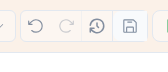
After making a change, click Save in the top bar. Its tooltip helps you identify the icon. The displayed shortcut is ⌘S on Mac; use Ctrl+S on Windows.
Wait for saving to finish before closing the tab. If an error appears, keep the tab open, check your connection and try again. A change still visible on screen is not, on its own, proof that it has been saved.

2. Undo a mistake
Click Undo to reverse the most recent change that can be undone. Check the page: the correct text, element and context should be restored. Do not click repeatedly without checking what changes.
3. Redo a change
If you undid the right change by mistake, use Redo. Check the result again, then save the state you want to keep.
4. Check after reloading
Once saving has finished, reload the page. Return to the same page and content language. Your expected result should still be there.
When several people work together
History can help you understand changes. Undoing may cause a conflict if someone else has changed the same data. Read the choices before keeping or replacing a version. This situation has its own guide.