
Adjust an element inside its container
A layout has two levels: the parent organises the elements, while each child can adjust its own placement. This avoids changing a whole section to fix one card.
1. Choose the right level
Open Layers and find the container holding the elements. Select that parent to change the overall layout. Select one of its direct children to change only that child's behaviour.
In Expert, Layout item adapts its controls to the parent. These are visual settings; no code field is needed.
2. Inside a row or column
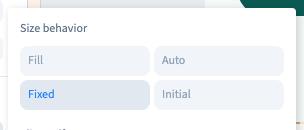
A child can share available space, start from its content size, or keep a size without automatic shrinking. It can also have its own alignment. In a row containing an icon and text, for example, the text can take the remaining space. The parent still controls direction and the gap between children.
Could not play. Try the video controls.
3. Inside a grid
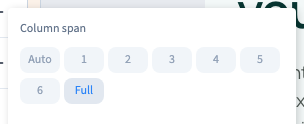
A child can occupy several cells or the full row and align within its allocated area. The parent still defines the number of columns. A wider card does not add a new column to the grid.
Could not play. Try the video controls.
4. Find a missing control
Check the real parent in Layers. A paragraph inside a card is not necessarily a direct child of the grid containing that card, so its available controls may differ. Also check the selected element and editing mode; the detailed settings here are in Expert.
5. Check the result
Should one card change or all cards? Does its size still suit mobile? Is a child exception preventing the parent setting from taking effect? Is reading order still sensible? Remove an unnecessary child exception before multiplying corrections on the parent.