
Choose between padding, margin and gap
Three settings create space, but they answer different questions. First decide where you need more room.
1. Choose the right setting
| You want to… | Setting | Select |
|---|---|---|
| Move text away from a card's border | Padding | The card |
| Move the card away from its surroundings | Margin | The card |
| Keep a regular distance between cards | Gap | Their Flex or Grid parent |
Imagine a card containing a heading. Padding is inside its border, margin is outside it and gap is the shared distance organised by its parent.
2. Give the content room inside its card
In Expert, select the card and open Spacing → Padding. Add it with the group's + if needed. Start with one value for all four sides. Separate sides only when you need different spaces at the top, bottom or edges.
Could not play. Try the video controls.
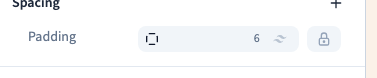
3. Separate an element from its neighbours
Select the element and use Spacing → Margin. A bottom margin on a heading can separate it from the following paragraph. For a whole list, prefer a shared parent gap when individual exceptions are unnecessary.
Set margins and centre a narrower block
Could not play. Try the video controls.
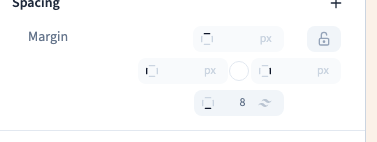
4. Space children within a layout
Select their Flex or Grid parent and use Layout → Gap. A shared value affects both directions. Separate horizontal and vertical values are useful in a grid.
Could not play. Try the video controls.
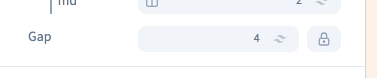
5. Investigate unexpectedly large spaces
Spaces can combine: a card's margin, the parent's padding and the gap between children may all contribute. Check these locations before changing random values. In normal flow, neighbouring vertical margins can also collapse together rather than simply add up.
Centring text and centring a block are different operations. Text alignment affects the text inside its box. The box's placement depends on the parent layout, its dimensions and sometimes its margins.
6. Check mobile and remove a value
Compare widths. Comfortable desktop spacing can consume too much room on mobile; use an appropriate screen rule when a different value is needed.
Remove an unwanted value with its removal command rather than setting everything to zero. Zero explicitly requires no space in that scope. Removing the value allows other applicable rules to take effect.