
Use your own SVG icons
Your own pictograms can make the site more recognisable. An SVG is a vector image that stays sharp as its size changes. It can be selected in the same picker as library icons.
1. Select an icon
In Design, choose Expert, select the icon in the page or Layers, and open its icon selector. These are visual controls, without code.
If your logo is an image element, use the image selector instead. These controls apply to an icon element.
2. Import the SVG files
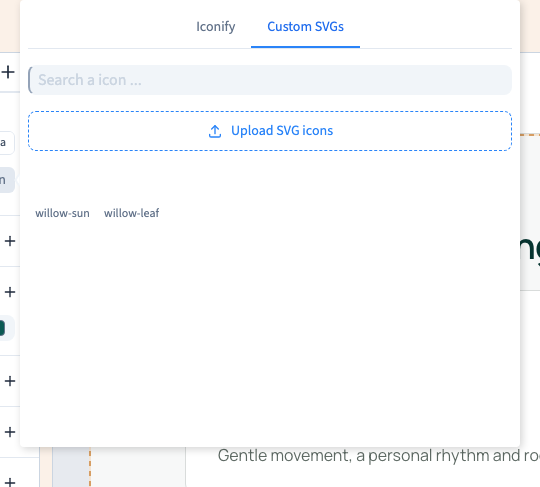
Open Custom SVGs, choose Upload SVG icons, and select one or more files. Wait for their names to appear. Uploading makes the files available; select one to apply it.
The example imports willow-leaf.svg and willow-sun.svg. Use clear filenames and simple shapes that remain recognisable at a small size. Renaming a photograph with an SVG extension does not turn it into a vector icon.
Could not play. Try the video controls.
3. Find and apply an icon
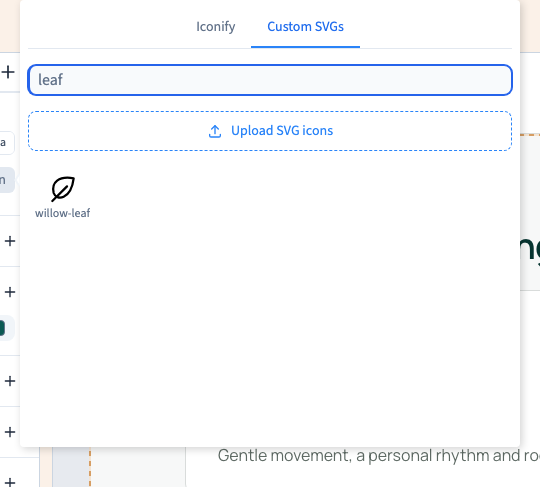
Search for part of its filename, then select the desired pictogram. The recording searches for leaf and applies it. Clear the search to see the other files again.
You can reopen the picker, choose another SVG or return to the library. Changing this element does not change all other icons.
4. Adjust size and understand colour
Set equal width and height for a square pictogram. The example uses 16, equivalent to 64 px.
A file designed to inherit the text colour follows the theme colour setting. The demonstration's leaf does this. A file containing fixed colours keeps them: its sun stays gold and green.
A colour that does not change is therefore not automatically a failed setting. Ask the SVG's author for a recolourable monochrome version when that is what you need. Keep the original colours when the illustration is deliberately multicoloured.


5. Verify and save
Save and reload, then inspect the published icon on desktop and phone. Check sharpness, colours, dimensions and spacing. Let the SVG finish loading before comparing it.
Before deleting a file from the library, check where it is used. Retaining the source files also makes future edits easier.