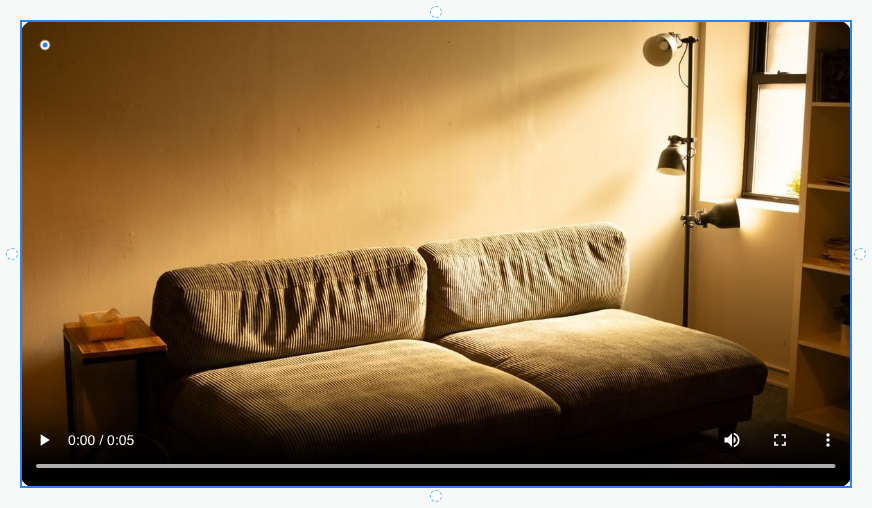
Display a video and configure playback
Decide whether the visitor should start the video or whether it serves as a discreet background animation. These choices need different playback settings.
1. Choose the video file
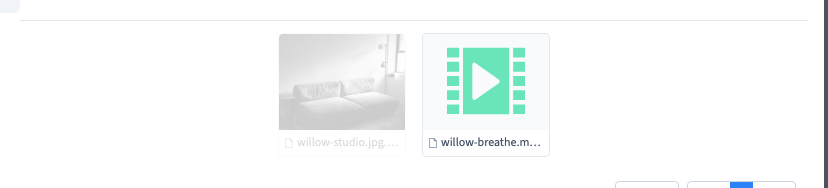
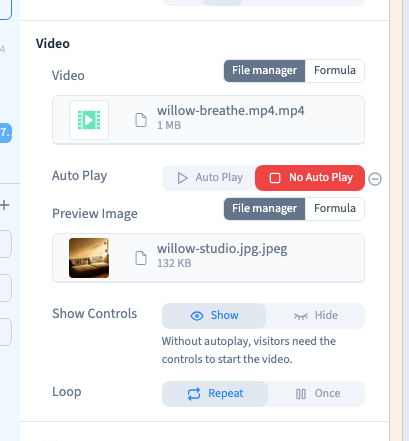
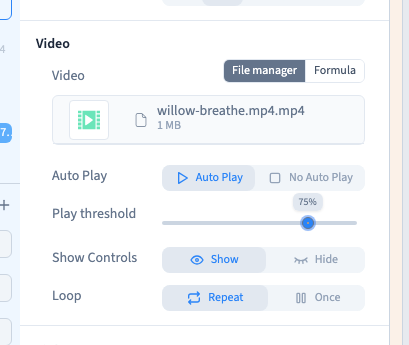
In Design, select a Video element and open its Video group. Choose Select file, or Change file when one is already selected, then select the clip from the file manager.
Prepare web-friendly files and check their size and phone playback. The example uses a short CC0 nature clip from MDN for the fictional Willow Studio. A YouTube video uses the separate YouTube element and its identifier.
Could not play. Try the video controls.
2. Prepare the poster
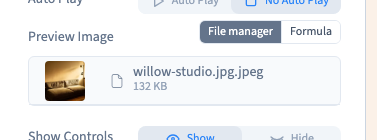
With automatic playback off, choose a Preview image to display before playback. Pick a clear image that fits the video's proportions and gives visitors useful context.
This control disappears from the panel when automatic playback is enabled. That does not mean the video file has been removed.
3. Choose controls and repetition
With manual playback, the player keeps the controls visitors need to start it. The unavailable hide choice has an explanation. For an instructional video, keep controls visible so visitors can pause and return to a step.
With automatic playback enabled, controls can be shown or hidden. Loop repeats the video after it finishes. This can suit a short decorative clip; a long explanation usually benefits from ending normally.
The recording compares these controls, then returns to manual playback with a poster and visible controls.
4. Configure automatic playback and its threshold
Enable Autoplay to start playback when enough of the video is visible. Its visibility threshold appears in the panel. The demonstration sets 75% with the slider and keyboard arrows.
This is the visible part of the player in the visitor's window, not the video's progress. Test scrolling on the published page, including entering and leaving the visible area. Automatic playback is muted, and browser restrictions can affect it.
The editing canvas may pause automatic media while you work. Use visitor preview or staging to judge the actual behaviour. Keep essential information available as text or in a video that visitors start themselves.
5. Save and test as a visitor
Save, reload and test staging on desktop and phone. Start manual playback, pause it, and check the poster, controls, proportions and repetition. A narrow page should not produce horizontal overflow.
Saving the file choice and publishing the site are separate actions.