
Embed YouTube or an external page
An embed displays content hosted by another service inside your page. You control its source and space; its internal content remains managed by the provider.
1. Choose the right element
Use YouTube for a YouTube video, Video for a file in your Communik library, and Google Map for an ordinary location map.
An Embed or iframe element suits a form, calendar or widget whose provider permits embedding. Obtain its dedicated embed address, which may differ from the ordinary viewing address.
In Expert, use Layers to select the Communik element without activating the provider's own buttons inside its frame.
2. Set the YouTube identifier
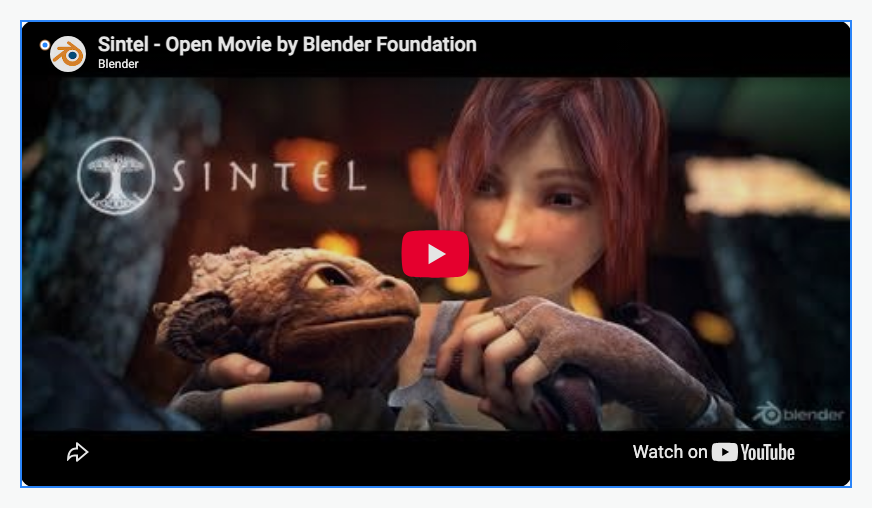
In Video, replace Youtube ID. In an address such as https://www.youtube.com/watch?v=eRsGyueVLvQ, the identifier is eRsGyueVLvQ.
The example uses Sintel from the Blender Foundation. The content stays on YouTube; no video file is imported into Communik. Check that the chosen video permits embedding.
Manual playback and visible controls suit content visitors should follow at their own pace. Provider and browser restrictions can affect autoplay and availability.
Could not play. Try the video controls.
3. Enter a provider's embed address
Select Embed in Layers and replace Embed source with the full address supplied by the service, usually beginning with https://.
This field expects an address, not a complete HTML snippet. If the provider supplies an iframe snippet, obtain its source address. Edit the provider's texts, forms and buttons in its own service.
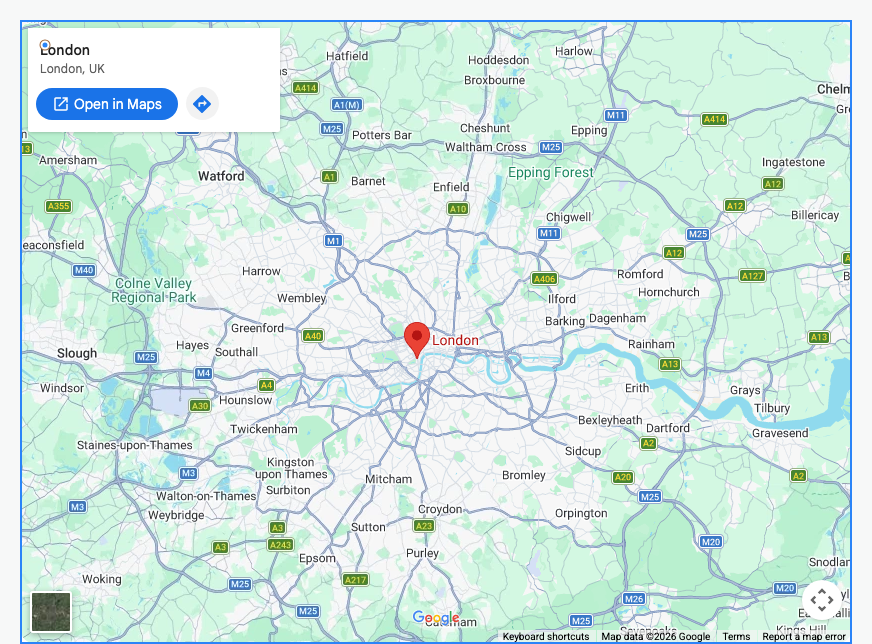
The demonstration changes a map embed from Bordeaux to London. For an ordinary map, the Google Map element is simpler. A direct link to the external service can also help visitors open it separately.
Could not play. Try the video controls.
4. Adjust proportions and available space
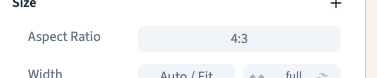
A horizontal YouTube player uses 16:9 in this example. For an iframe, open Aspect ratio in Size and choose an appropriate format. The recording chooses 4:3, making the frame taller at the same width.
Let the width follow the container. Forms and calendars may need more height than a video. Check their complete content, including confirmation buttons.
A frame fitting a phone does not prove its provider's content is mobile-friendly. Test both.
5. Save and test the external content
Save, reload and inspect staging on desktop and phone. Start the player or use the service controls, then scroll the page and check for overflow.
If a frame is blank, check its source, sharing permissions, consent settings and the provider's permission to embed. Entering an ordinary website address cannot override a provider's iframe restrictions.
Keep essential information available as text or a direct link, since an embed depends on another service and the visitor's connection.