
Edit rich content
Rich content combines several paragraphs, headings and sometimes links or media in a single field. It suits the body of a journal article. Its toolbar has more options than editing a simple heading directly in the page.
1. Open the correct field
Open Data, choose the collection and edit a row. Click its rich-content field. In this example, content belongs to the fictional Studio journal collection.
A short title field and a rich-content field do not necessarily offer the same commands. Identify the field and its toolbar before looking for heading or list controls.
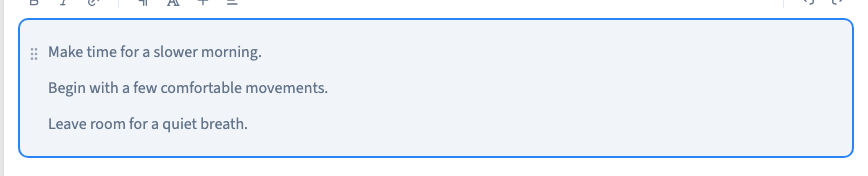
2. Structure headings and paragraphs
Place the cursor in a paragraph, open the paragraph-type menu and choose Heading 2, Heading 3 or another available level. The menu shows a paragraph mark for normal text.
Use a heading to describe the section that follows. When the page already has its main title, begin article sections at level 2 and use level 3 for their subsections. Do not choose a heading level only for its visual size.
To return to ordinary text, select Normal from the same menu. The demonstration changes a paragraph into a level-2 heading while preserving its words.
Could not play. Try the video controls.
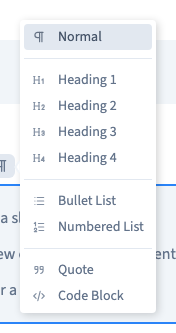

3. Create a list
Place the cursor in a paragraph, reopen the paragraph-type menu and choose a bulleted or numbered list. Bullets suit an unordered set; numbering suits successive steps.
Enter adds a list item. Enter again in an empty item to return to a normal paragraph. Check pasted text, which may bring unwanted formatting.
A quotation is for a quoted or highlighted passage, rather than a replacement for a heading. The recording creates a real bulleted list and checks that the words remain unchanged.

4. Format selected words and links
Select the relevant words and use B, I or the additional text-format options. Colour and size in this toolbar apply to the selection.
For a link, select meaningful words, open the chain icon, enter the destination and confirm it. Test the link in the page that displays the field.
5. Insert useful media
The toolbar's + opens the insertions available in this field. An image insertion uses a file from the library. Other choices, such as tables or dividers, depend on the editor context.
The demonstration focuses on headings and lists. Choose images that help understanding and check how they fit at a phone width.
6. Save and inspect the displayed content
Save the row and reopen it to check persistence. The field stores the structure; the site's rich-text theme determines its appearance where it is displayed.
Inspect that page at its actual width, then publish when ready. Updating a collection field does not by itself mean every public page using it has been republished.
If a command is missing, verify that this is a rich-content field. Direct editing of a page heading does not offer the same paragraph menu, and insertions can vary by context.
Continue
Format selected words · Style rich text across the site · Save, undo and redo