
Combine animation effects and adjust their timing
One animation can combine several effects: for example, moving an element upwards while revealing it. These effects share a trigger but can have different values and timing.
This guide uses the visual controls in Expert mode. No code is needed. Before testing an animation, open Screen, use one preview frame and turn on Enable animations. Side-by-side previews disable animation playback in the editor.
1. Open the effect tabs
Select the element and open its line in Animations. The Effects row contains a tab for each animated property. Select a tab to edit that effect. The property control tells you whether it changes opacity, position, scale, rotation, blur, clipping or skew.
2. Add an effect
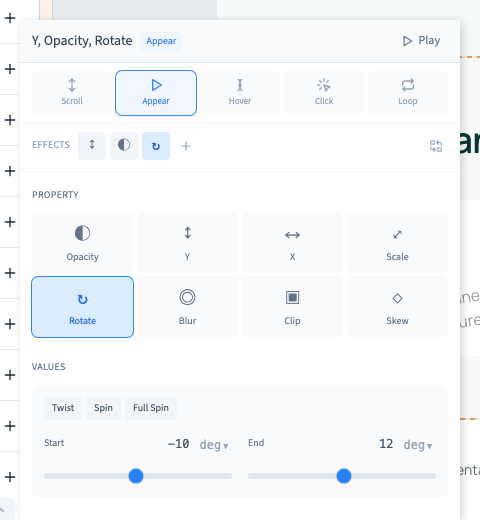
Use + in the effects row. A new effect starts with opacity; choose the property you need, such as Rotate. Changing the property initialises its values, so check both the start and end values afterwards.
These are visual animation controls. You do not need to write classes or code.
Could not play. Try the video controls.
3. Set its values
Click a number, type a value and press Enter. Units depend on the property: rotation uses degrees, a position may use pixels, and a scale of 1 is the normal size.
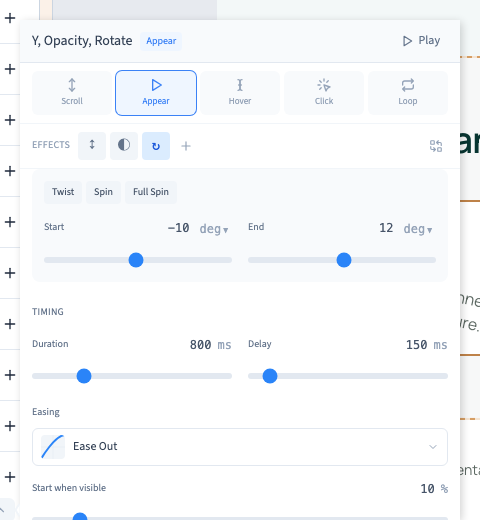
The demonstration adds a rotation that ends at 12°. Begin with a modest difference between start and end. If the movement distracts from the content, reduce that difference first.
4. Set duration and delay
For an appearance or loop, Duration determines the length of one pass. Delay makes this effect wait before starting. 1,000 ms equals one second. The example gives the rotation a duration of 800 ms and a delay of 150 ms.
Other effect tabs keep their own settings. Editing the rotation does not automatically synchronise the entire animation. The easing curve controls acceleration and slowing down; change one setting at a time and replay the result.
Scroll triggers use a scroll range rather than a fixed time. Hover and pressure offer transition settings instead.
5. Duplicate or remove a tab
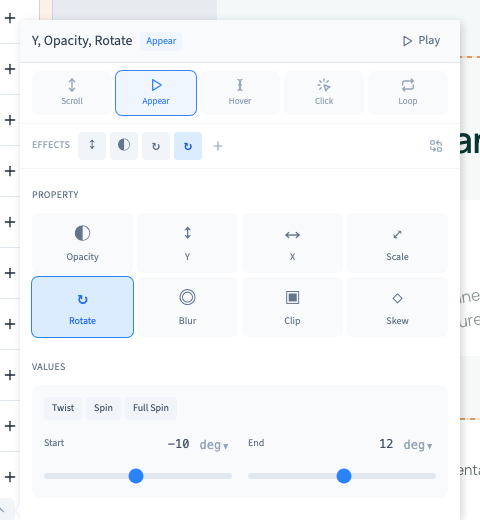
Hover over an effect tab to reveal Duplicate and Delete. Duplicating adds a copy; deleting removes the selected effect. The demonstration adds a rotation, duplicates it, then removes the redundant copy.
Check the effect count and avoid contradictory effects on the same property. To remove the whole animation, use the remove command on its line, rather than trying to delete its last remaining effect.
6. Check the whole movement
Click Play and watch both the element and its neighbours. Keep the text readable and important controls easy to reach. Save and test the visitor preview as well.
Continue
Share a transition across effects · Control repetition and exit behaviour