Add, replace and remove an animation
An animation can draw attention to an element or make an interaction easier to understand. Start with a small movement that does not interrupt reading.
This guide uses the visual controls in Expert mode. No code is needed. Before testing an animation, open Screen, use one preview frame and turn on Enable animations. Side-by-side previews disable animation playback in the editor.
1. Select an element
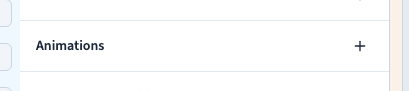
Select the element on the page or in Layers. For a first test, use a card, button or short paragraph without an existing animation. In the style panel, find Animations. Animating a container also moves its children visually.
2. Add a preset
Click + in Animations, hover over Animations, then hover over a category and select a preset. Categories distinguish text, appearance, hover, pressure, loops and scrolling.
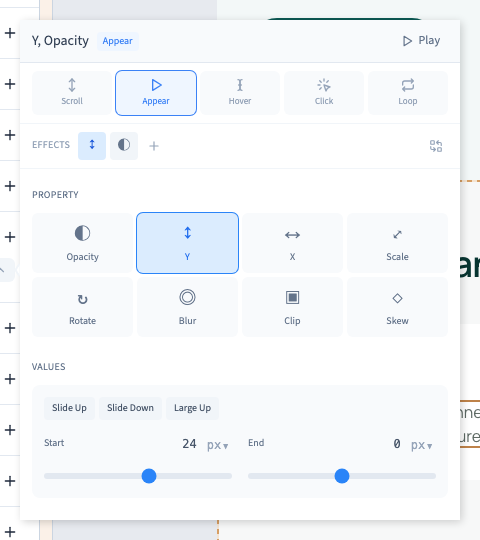
Fade Up combines a gradual appearance with an upward movement. Fade In changes opacity alone. A line appears in the panel; its effect count tells you how many properties make up the movement.
Could not play. Try the video controls.
3. Watch the real result
Open the animation line and click Play. Watch the element on the page alongside the settings. For a scrolling effect, also scroll the page. For hover or pressure, test the interaction itself in the visitor preview.
The demonstration compares an appearance with two effects and a simpler fade. A preset is a starting point: it does not guarantee that the movement suits your content or every screen size.
4. Replace this animation
In the animation editor, use Replace with preset and select another movement. This changes the animation you opened; adding another preset with + creates another animation instead.
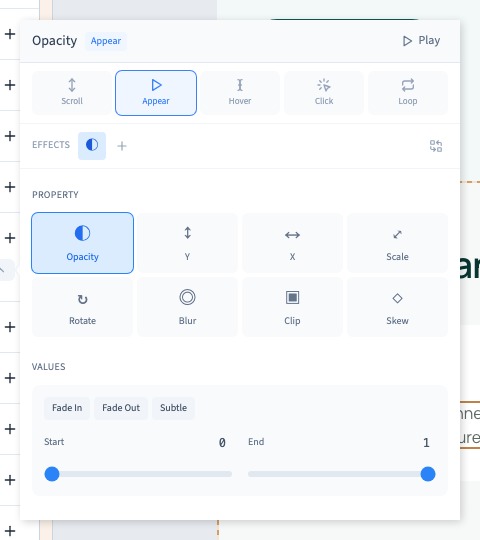
Check the effect count and properties after replacing. In this example, replacing Fade Up with Fade In leaves opacity alone. Close and reopen the animation line to inspect its current fields before changing a value. Replay it to compare the result.
5. Remove or undo
Close the editor, hover over the animation line and use its remove command. Undo in the header restores the removed animation. Save when you are satisfied.
Check the visitor preview at desktop and phone widths. Keep important text and controls understandable without requiring a visitor to notice a movement. Avoid stacking several competing animations on the same element.