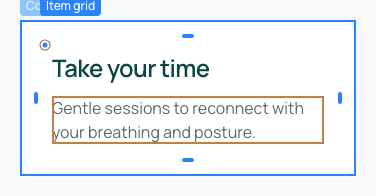
Adjust element opacity
Opacity determines how visible an element is. At 100% it is opaque, at 50% partly transparent and at 0% invisible.
1. Select what should fade
In Layers, select the container to fade a whole card, or the Image element to fade only a photograph. Opacity also affects the selected element's children. Fading the parent can make its text, buttons and images harder to read.
2. Add and choose opacity
In Expert → Effects, add Opacity with the group's + if needed. Choose an offered percentage. Group shortcuts compare common values; the detailed selector offers five-percent steps from 0 to 100.
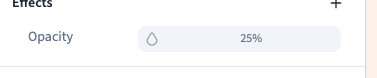
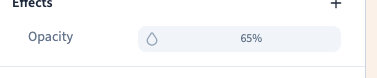
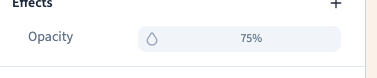
Choose one of the offered values. Removing the active value does not turn this control into a numeric input. The demonstration compares 25%, 75% and 65%, then removes opacity to recover the initial appearance.
Could not play. Try the video controls.
3. Keep child content readable
A transparent card reveals what is behind it, so its appearance depends on the page background. For a light background with sharp text, adjust the background colour instead. Parent opacity still fades its content even if a child has 100% opacity.
Low opacity can suggest a secondary state, but is not enough to disable a button.
4. Distinguish invisible, hidden and deleted
At 0%, the element remains in the structure. It may retain its space and remain interactive. Do not make a button invisible as a way of preventing clicks.
Use an appropriate Display or visibility setting to remove an element from the visible layout. Use a structural command to delete it. These actions affect layout and content differently.
5. Check screen and state rules
Opacity can differ between the base line and screen or hover conditions. Inspect the line you are editing. A tablet-and-up rule can continue applying on desktop. Compare frames and use visitor preview to understand interactive states.
6. Remove the value and save
Use the removal control for the intended line. Another rule may still make the result partly transparent, so inspect the remaining lines before assuming removal failed. Undo recovers an earlier experiment. Save when the result remains readable.