Animate text by letters, words or lines
Animated text appears gradually by letters, words or lines. Reserve it for a short phrase worth noticing. Essential paragraphs should remain quick and easy to read.
This guide uses the visual controls in Expert mode. No code is needed. Before testing an animation, open Screen, use one preview frame and turn on Enable animations. Side-by-side previews disable animation playback in the editor.
1. Choose a text preset
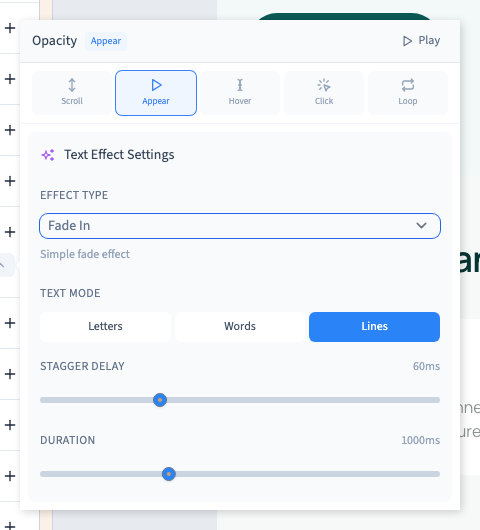
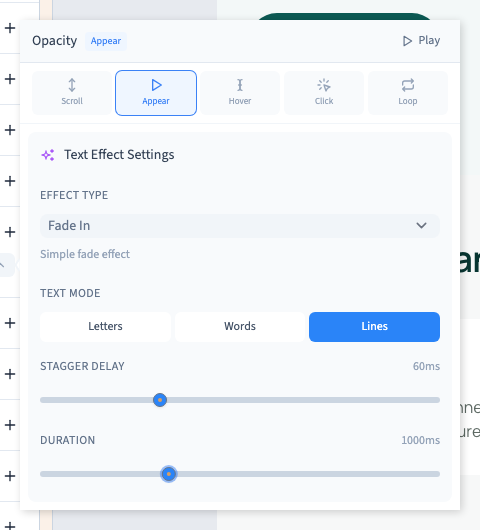
Select the text on the page or in Layers. In Animations, click +, hover over Animations, then the Text category. Choose Fade In and open its line.
The category matters: Fade In under Text reveals fragments, whereas Fade In under appearance animates the whole element. Keep the real page visible next to Text effect settings and use Play to compare.
Could not play. Try the video controls.
2. Choose the fragments
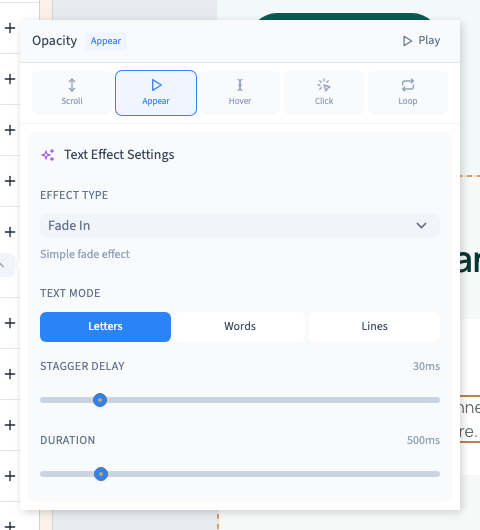
| Text mode | What is animated together |
|---|---|
| Letters | Each character; precise but potentially slow for long text |
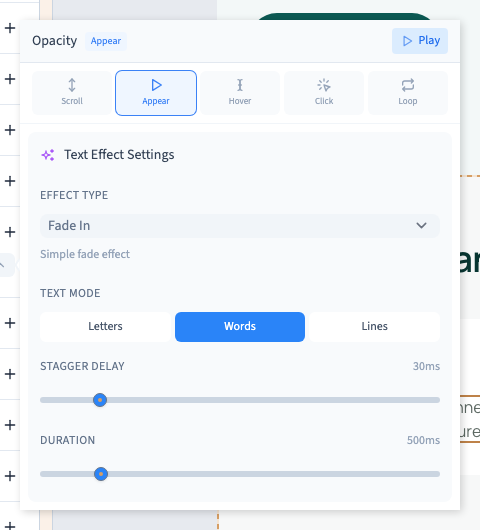
| Words | Each word; useful for a short sentence |
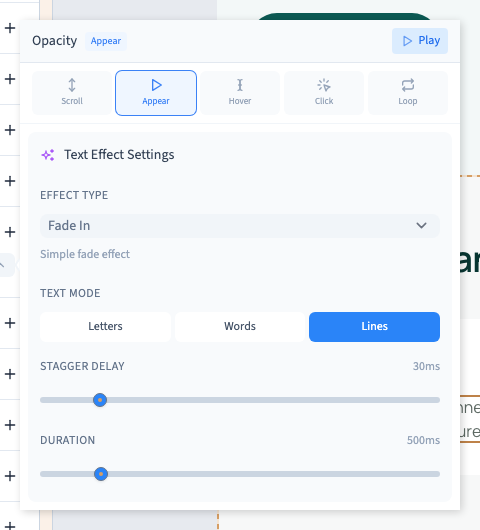
| Lines | Groups based on the actual displayed lines |
Replay after changing mode. Lines depend on available width: check a phone frame because the same sentence can wrap into more lines. This changes animation grouping, not the text content.
3. Adjust the rhythm
Stagger delay spaces the starts of successive fragments. A low value brings them closer together; a high value emphasises the succession. It is not one delay before the whole text.
Duration controls each fragment's movement. Since fragments start at different times, the full sequence can take longer. The demonstration uses 60 ms between fragments and 1,000 ms per movement.
Move the sliders gradually and replay. Start shorter if the animation delays access to information.
4. Compare effects and their options
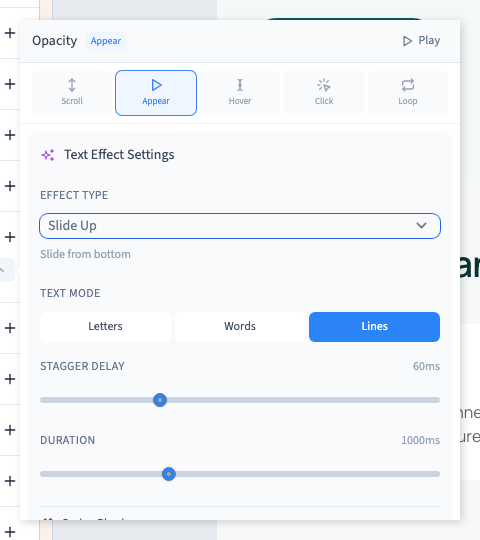
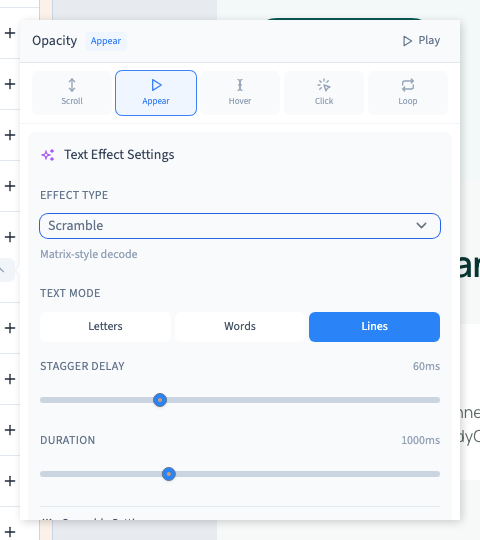
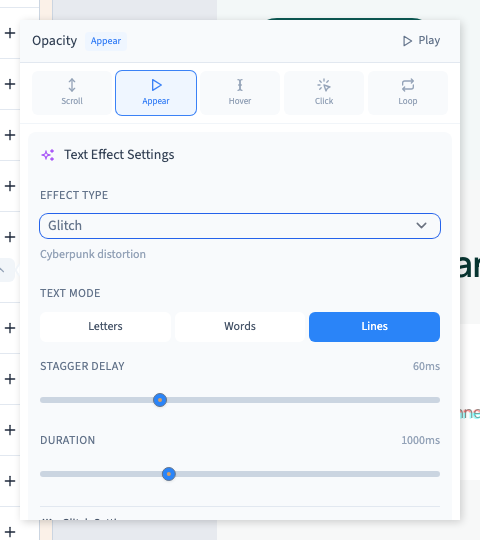
Open Effect type. The controls below it change with your choice.
| Effect | Result | Options to inspect |
|---|---|---|
| Fade In | Gradual appearance | Mode, stagger and duration |
| Slide Up | Entry from below | Spring settings |
| Scramble | Mixed characters before revealing the text | Scramble speed |
| Glitch | Text distortion | Intensity |
For a spring, stiffness makes the movement firmer and damping reduces oscillation. Change one parameter at a time. Scramble speed affects character mixing; Glitch intensity affects distortion.
Both can temporarily reduce readability. Compare with a simple fade before keeping them. Some effects also offer looping, which continually attracts attention and should be used sparingly.
5. Verify the final text
Replay and wait until completion. Check that the final sentence is complete, the rhythm works at phone width and the movement does not distract from an important button.
Save and test the visitor preview. To remove the animation, close the settings and use its line's remove command. Undo can recover it.