
Smooth a style change with a transition
A transition smooths the change between two style values, such as normal opacity and hover opacity. It does not create the second state by itself.
This guide uses the visual controls in Expert mode. No code is needed. General style transitions and preset animations have separate controls.
1. Define two states
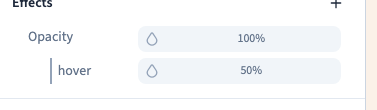
Select an element and add Opacity in Effects if necessary. Keep a base value of 100%. Add a Hover condition and give it 50% for a clear comparison.
Hover over the actual element, then move away. The two values must work before you add a transition. For a final design, use a smaller change if readability suffers.
Could not play. Try the video controls.
2. Choose what should change gradually
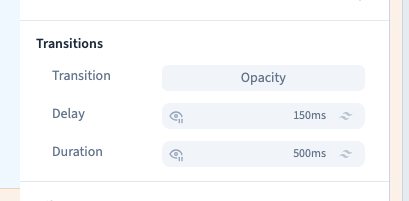
In Transitions, add the transition property and choose Opacity. This limits smoothing to opacity. Choose a property that actually changes between your states; a transition on a fixed value produces no visible movement.
| Transition choice | Typical use |
|---|---|
| Colors | Text, background and border colours |
| Opacity | Fading |
| Shadow | A changing shadow |
| Transform | Position, rotation and scale |
| Default | Several common properties |
| All | Every property that can transition |
| None | No gradual change |
Put the transition on the element's base line so it can act both on entry and on return.
Avoid applying transitions indiscriminately. A layout change or delayed essential control can be confusing.
3. Set duration and delay
Set Duration to 500 ms and Delay to 150 ms for this comparison. Duration is how long the change takes; delay is the wait before it starts. 1,000 ms equals one second.
These are different from text stagger or the timing of an individual animation effect. Check which group you are editing.
4. Test both directions
Hover, wait for the result, then move away and watch the return to normal. The demonstration verifies opacity reaches 50% on hover and returns to 100%, with a half-second transition and a short delay.
Try a shorter delay for a responsive interface. A large delay can feel as though an action was ignored. Important information must remain available on touch screens without hover.
5. Choose a preset when you need a composed movement
For an appearance, several simultaneous effects, a scroll-linked movement or animated text, use Animations. These presets have their own triggers and effect timing.
Save the page and check the visitor preview, including the operating system's reduced-motion preference. Do not assume a particular effect adapts automatically without testing it. General transitions do not turn a style condition into a navigation action.
Continue
Use hover and pressure states · Start with an animation preset · Smooth effects inside an animation