
Control loops, replay and the state on exit
Repeated movement attracts attention, which can also make reading harder. A one-off appearance often suits content better; a small loop can work for a discreet indicator.
This guide uses the visual controls in Expert mode. No code is needed. Before testing an animation, open Screen, use one preview frame and turn on Enable animations. Side-by-side previews disable animation playback in the editor.
1. Start with a loop
Select an unanimated element and add Pulse from the loop category. Open its animation line. Loop is the active trigger, so the movement repeats without another visitor action.
The recording first increases the preceding hero section's minimum height with the visual size controls, so there is enough room to scroll the animated paragraph completely out of view. You can use your existing page if it already has enough scrolling space.
Set Duration to 1,000 ms for one second per pass. Watch several passes, not just the first.
Could not play. Try the video controls.
2. Compare Loop and Ping-pong
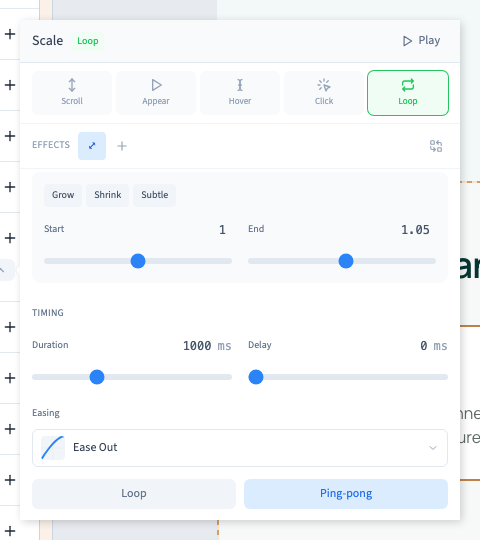
Loop restarts from the beginning after each pass. A large difference between the start and end can make that restart noticeable.
Ping-pong alternates forwards and backwards. For a slight scale change, this produces a gentler breathing movement. Reduce the amplitude or lengthen the duration if it feels distracting.
3. Return to an appearance
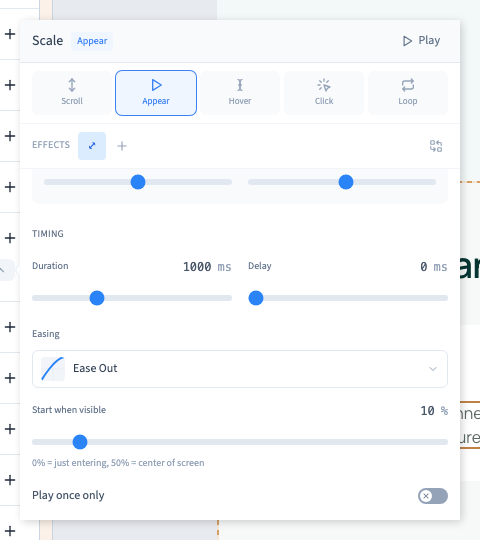
Choose Appear when the animation should start as the element arrives on screen. The loop options give way to appearance settings.
The one-time playback switch determines whether the animation should run only once. When it is enabled, returning to the element is not a request to replay it.
4. Allow another pass and choose the exit state
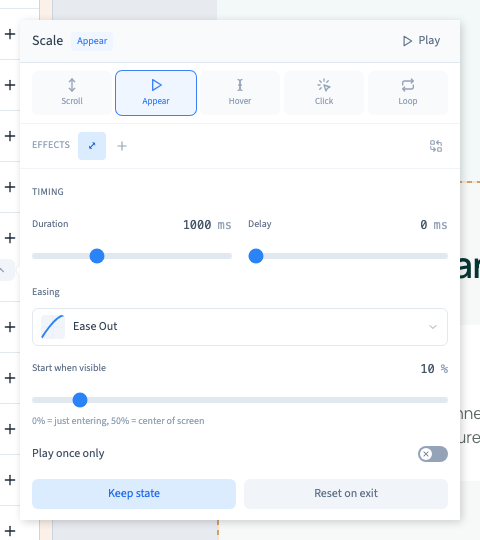
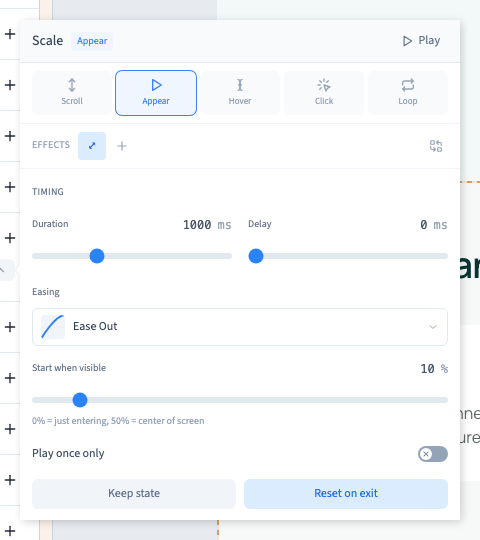
Turn off one-time playback to reveal the exit options. Keep state preserves the reached value when the element leaves the screen. Reset on exit returns the effect to its start so it can play again on re-entry.
The demonstration compares the two choices with a small scale change. It scrolls the element completely out of view, checks its state and returns. This is different from clicking Play, which deliberately replays an animation regardless of a natural entry or exit.
Use the visitor preview to repeat this check on your own page. An element needs enough scrolling space to genuinely leave the window.
5. Check every effect
Timing and exit settings belong to the selected effect. If the animation has several tabs, check their consistency. Resetting opacity while leaving position halfway through can create a surprising combination.
Save, then ensure the element remains understandable when the visitor does not pay attention to the movement. Avoid persistent loops on long paragraphs or essential controls.