
Smooth hover animations and share their transition
Without a transition, a hover effect can jump abruptly between values. The animation's transition smooths that change. It lives inside the animation editor, separately from the element's general style transitions.
This guide uses the visual controls in Expert mode. No code is needed. Before testing an animation, open Screen, use one preview frame and turn on Enable animations. Side-by-side previews disable animation playback in the editor.
1. Open an interactive animation
Select an element and add Lift from the hover presets. It combines vertical movement with a slight scale change. Open the animation and check that Hover is active.
Click, which means held pressure here, offers the same transition controls. It is not a link destination or a workflow action.
2. Enable a transition
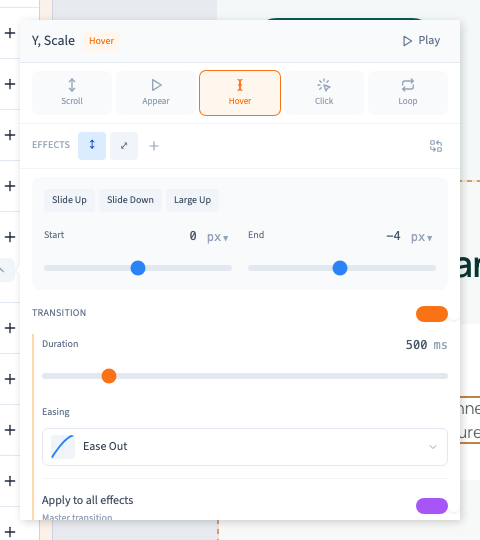
Select an effect and enable Transition. A duration and easing curve appear. Begin with 500 ms, or half a second. A shorter duration responds faster; an excessively long one can make the interface feel slow.
The easing curve controls how speed changes. Replay, then test an actual pointer entry and exit.
Could not play. Try the video controls.
3. Apply it to all effects
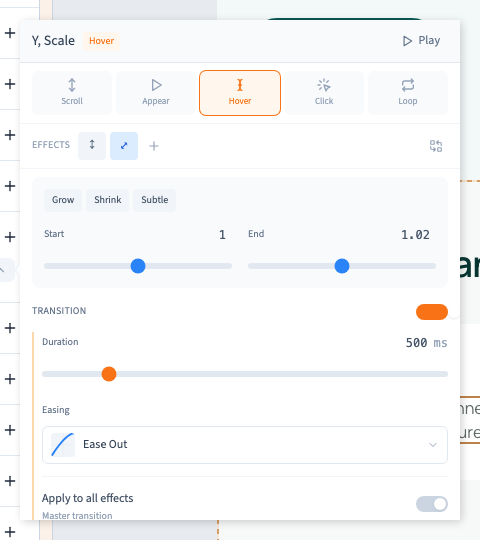
Enable Apply to all effects to propagate the selected timing and curve to the effects of this animation. It does not affect other animations on the page and does not make all property values identical.
A translation keeps its own positions while a scale effect keeps its own size values.
4. Inspect the second tab
In the Lift example, select Scale and verify that its duration is also 500 ms. The shared option propagates settings during editing; check the tabs when reopening rather than assuming every independently edited value remains synchronised.
5. Test the real hover and return
Close the settings, hover over the element and move away. The movement should be restrained and return clearly to normal. The demonstration verifies both the changed transform and its reversal.
For pressure, use the visitor preview to distinguish visitor interaction from an editor selection. Also test touch use: essential information must remain accessible without hover. Save when satisfied.
If the movement still jumps, check that transition is enabled on the relevant effects and that the duration is long enough. Editing only the general style transition is not the same operation.
Continue
Combine animation effects · Understand general style transitions