
Choose an animation trigger and scroll range
A timed appearance starts when an element reaches a position on screen and then runs for a set duration. A scroll animation follows the page as the visitor scrolls. Choose the behaviour that serves your content.
This guide uses the visual controls in Expert mode. No code is needed. Before testing an animation, open Screen, use one preview frame and turn on Enable animations. Side-by-side previews disable animation playback in the editor.
1. Choose the trigger
Select the element and open its animation. The top controls offer these triggers:
| Trigger | What starts or drives the movement |
|---|---|
| Appear | The element reaches its appearance threshold |
| Scroll | Progress follows scrolling |
| Hover | The pointer enters or leaves the element |
| Click | Pressure is held; this is not a navigation action |
| Loop | The movement repeats continuously |
The trigger applies to every effect in the opened animation. It can also change the settings shown below the values. Read them again after changing the trigger.
Could not play. Try the video controls.
2. Set a timed appearance
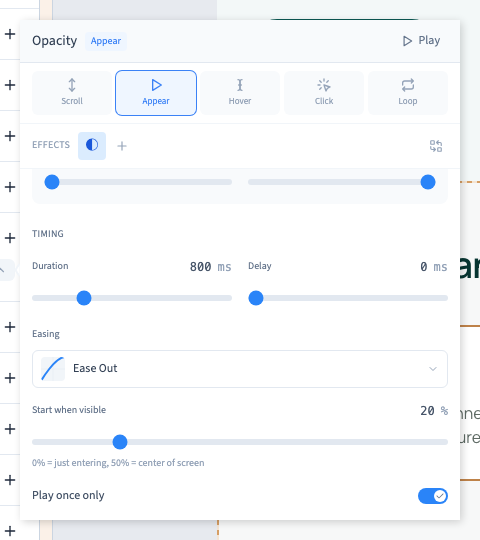
Choose Appear. Adjust Duration for the length of the movement and Delay to postpone its start. In the example, the appearance threshold is 20%, with a duration of 800 ms.
The threshold describes the element's progress through the scrolling area. It is not a measurement of the percentage of its content pixels that are visible.
Use Play to replay. Also test a real entry: scroll to before the element and move down the page until it arrives.
3. Follow the scroll position
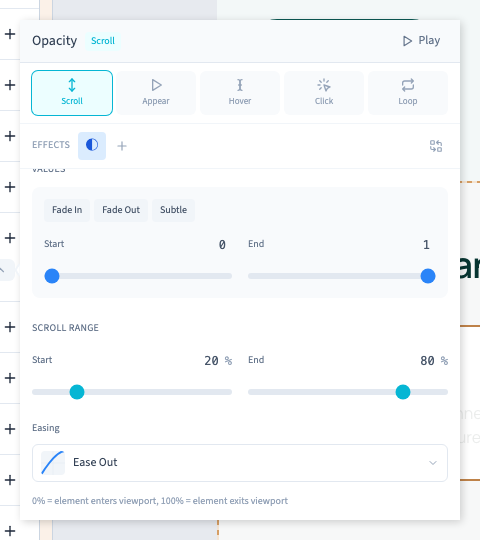
Choose Scroll. The scroll range replaces the time-based controls. Start and End define the part of the element's passage through the screen during which its values change. With these editor markers, 0% is entry into the window and 100% is exit.
Start with 20% and 80%. Keep the start lower than the end for a straightforward progression.
4. Test both directions
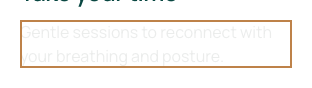
Close the settings and scroll the page forwards and backwards. The demonstration checks that the paragraph's opacity actually changes with its position.
The Play button alone cannot validate a scroll effect. Test a smaller preview too: text wrapping and container heights change the distance travelled. Keep essential information accessible even when an interaction is unavailable, especially hover on touch screens.
5. Decide what happens on another visit
For Appear, choose whether it plays only once or can play again. Exit options then decide whether the reached state is kept or reset.
If the result is unexpected, check the selected element, active trigger, effect values and range before adding another animation.