
Change what appears behind an element
Frosted glass softens what lies behind a panel while keeping its text readable. The Behind group provides these backdrop effects.
1. Prepare a visible backdrop
Choose an element in front of other content, such as a translucent panel over a photograph. An opaque background can hide the filters' result. In Expert, select the element, open Behind and add a filter with +.
The English demonstration uses Willow Studio's small translucent panel over the studio photograph. Its background already lets the photo show through; the panel itself does not need to become transparent through element opacity.
2. Blur the scenery
Add Blur and choose its strength. Inspect the panel over detailed scenery. For a banner that moves over content while scrolling, scroll to place an image or text behind it. The scenery softens while the panel's own content remains sharp.
A blur over a uniform colour may appear to do nothing because there are no details to soften. Compare against a photograph or another detailed area.
Could not play. Try the video controls.

3. Adjust light and colour
| Setting in Behind | Effect on the scenery |
|---|---|
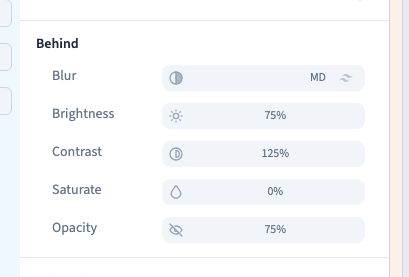
| Brightness | Lightens or darkens what appears behind |
| Contrast | Reduces or strengthens tonal differences |
| Saturation | Reduces or strengthens colours; zero removes colour |
| Opacity | Attenuates the backdrop-filter result |
For brightness and colour intensity, 100 is neutral. Start with one change, compare, then add another only if useful. The demonstration checks the five controls and their combined result.
4. Distinguish three operations
Behind changes scenery seen through the element. Filters in Effects change the element itself, including its content. Element Opacity fades the whole element, including text.
Behind's Opacity is not background-colour alpha. It does not, by itself, make an opaque background transparent.

5. Check readability and browser support
Filters can combine. Keep sufficient contrast as light or dark scenery passes behind text. Test scrolling on desktop and mobile, and the published site in the browsers your visitors use.
Keep a fallback background colour that remains readable without filtering. Avoid strong effects over large moving surfaces: they can cost more rendering work and distract people. A visible backdrop and a surface that lets it show through are both necessary.