
Change an element background
A background covers an element's surface, such as a card, section or button. It stays behind the content. Start with a restrained colour that keeps text easy to read.
1. Select the right surface
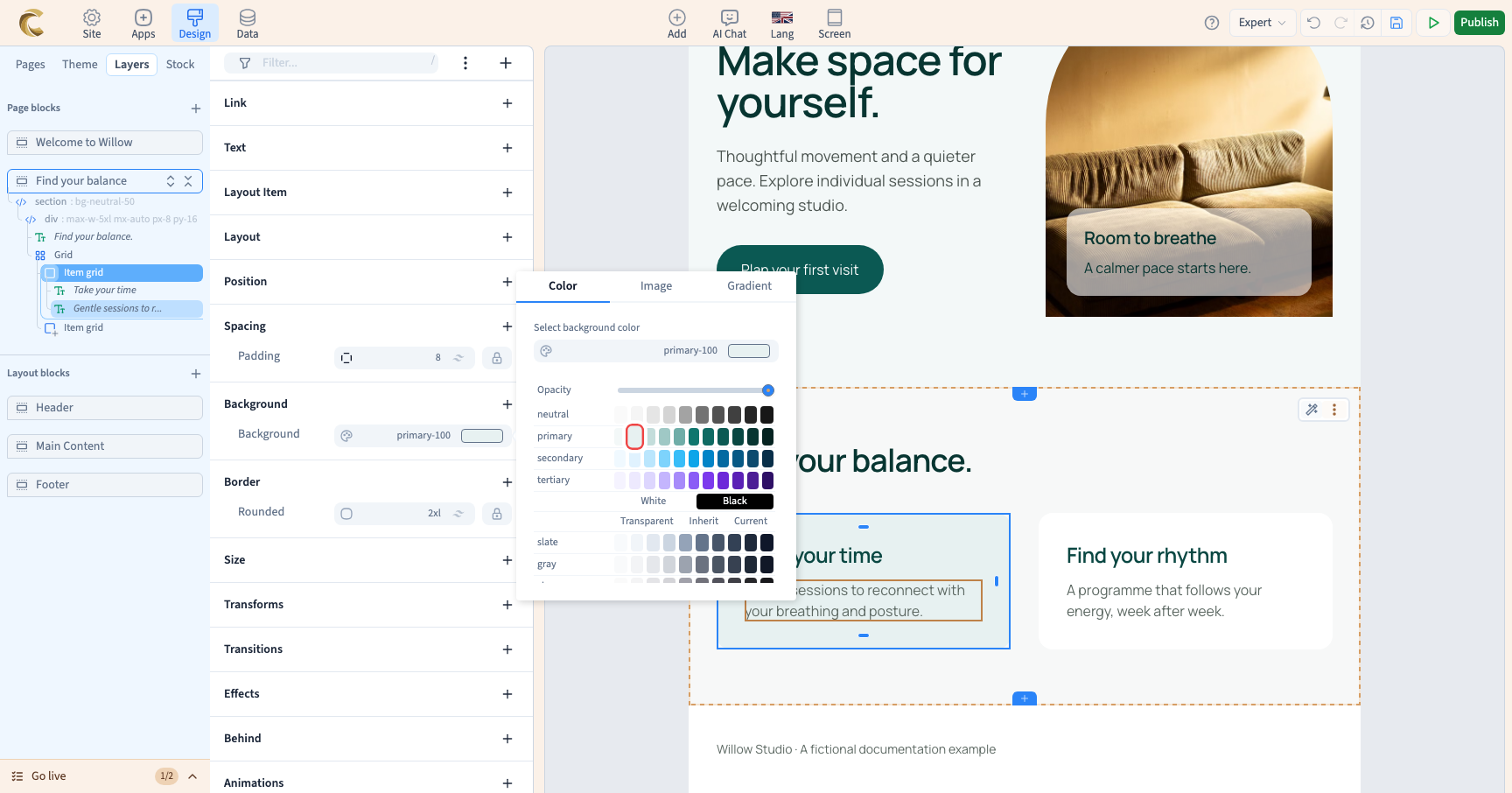
In Layers, select the card or container. Selecting its heading would change that heading rather than necessarily changing the whole card. In Expert, find Background and add the setting with the group's + if needed. Use the visual controls; no code is required.
2. Choose a solid colour
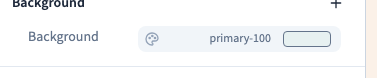
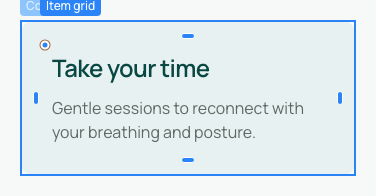
Open the background control and use the Color tab. Theme colours help the surface fit the rest of the site. Light shades often work well behind dark text. The demonstration changes the whole card to a light theme colour while preserving its content.
Watch the preview after each choice. Changing the background does not automatically change text colour. Adjust the text as well if contrast becomes insufficient.
Could not play. Try the video controls.
3. Choose a background type
The same control offers three tabs: Color gives a uniform surface, Image places a photograph or texture behind content, and Gradient creates a transition between colours.
Changing type can remove settings that no longer apply to the previous type. Compare the result and use Undo if you prefer the earlier background.
A background image is decorative. If a photograph communicates essential information, use an Image element with useful alternative text instead. A detailed or dark background can make text hard to read.
4. Distinguish background transparency from opacity
A transparent background lets the surface behind it show through. The element's Opacity setting also fades its text and images. To keep text sharp, start with the background rather than fading the entire card.
The Behind group affects the scenery behind a surface. The Effects group affects the element itself.
5. Check different widths
Compare phone, tablet and desktop widths. A screen rule can change the background from a particular width and may continue applying on larger screens. Check contrast, image cropping and the areas beneath wrapped text. Save when the result remains readable.