
Adjust visual rendering with filters
Filters change an element's rendering without replacing its file or content. They can harmonise a photograph or create a limited decorative effect.
1. Select the image rather than the entire card
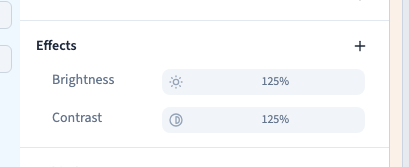
To affect only a photograph, select its Image element in Layers. Filtering a parent can also affect the card's text and buttons. In Expert → Effects, use + to add the required filter. The Behind group serves a different purpose: it affects scenery behind a surface.
2. Choose the right filter
| Filter | Effect | Neutral comparison |
|---|---|---|
| Blur | Softens details | No blur restores sharpness |
| Brightness | Lightens or darkens | 100% keeps brightness unchanged |
| Contrast | Strengthens or softens differences | 100% keeps contrast unchanged |
| Saturation | Strengthens or reduces colours | 100% keeps saturation unchanged |
| Grayscale | Removes colour progressively | 0% keeps the original colours |
| Sepia | Adds a brown tint | 0% removes that effect |
| Invert | Inverts colours | 0% removes that effect |
Start with a small change. Extreme values help explain a control but may be unsuitable for the public page.
3. Compare on a real photograph
Choose a preset and inspect the image before changing another setting. Blur uses a distance; the other filters shown use percentage intensity. The same number therefore means different things in different controls.
The English demonstration compares all seven filters on the Willow Studio photograph and removes each before trying the next. The source image remains unchanged.
Could not play. Try the video controls.







4. Understand accumulated filters
Several filters can remain active on the same element. The demonstration combines brightness with contrast, then removes brightness while retaining contrast. Removing one filter does not remove the others.
Change one setting at a time. If the result is surprising, inspect the other filters and the opacity of the element and its parents. Check each active filter to recover the original rendering.
5. Preserve useful information
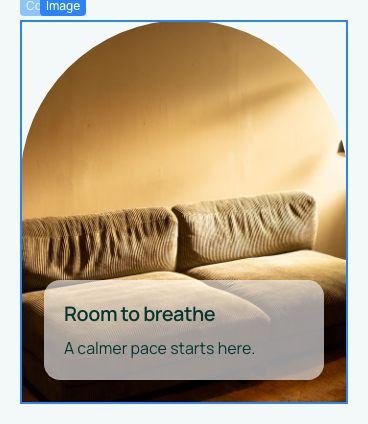
Avoid blurring a photograph when its detail is needed for understanding. Strong effects on text can also impair reading. A filter does not alter the original file: another element using the same image without a filter can render independently.
6. Check conditions and save
Inspect base, screen and state lines. Compare mobile and desktop widths and test preview. Remove the setting in the correct scope; another rule may take over. Use Undo for an earlier experiment and Save to retain the result.