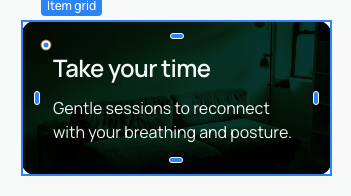
Set a background image
A background image decorates a container. It does not determine the container's height or replace a content image. Use an Image element with alternative text when the photograph communicates important information.
1. Choose a project image
Select the container. In the Expert style panel, open Background, click the current background, choose Image, then Select file. Choose a photograph in the project's file manager. It appears behind the container content. Our example starts with a dark card and light text, prepared before choosing the photograph.
The file manager also supports uploads. For managing the image itself, use the image article linked below. A background image does not give an empty section a height: first prepare its layout, content and dimensions.
Could not play. Try the video controls.
2. Decide what must remain visible
Open the image size selector.
| Choice | Result | Useful for |
|---|---|---|
| Cover | Fills the area and may crop part of the image | A photograph covering a card or section |
| Contain | Shows the complete image and may leave space around it | A visual that must remain entirely visible |
| Auto | Uses the image's automatic size | A pattern or background with deliberately chosen dimensions |
Cover crops rather than stretching the photograph. A narrow card and a wide section therefore show different parts. The demonstration compares Cover and Contain on the same card without replacing its text or changing its size settings.
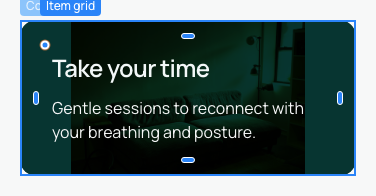

3. Set position and repetition
Position chooses which area to favour: centre, top, bottom or a side. If Cover removes a face, adjust position before changing the container's dimensions.
Repeat controls repetition horizontally, vertically or in both directions. Choose No repeat for a single photograph. A pattern may need repetition instead.
4. Preserve readable text
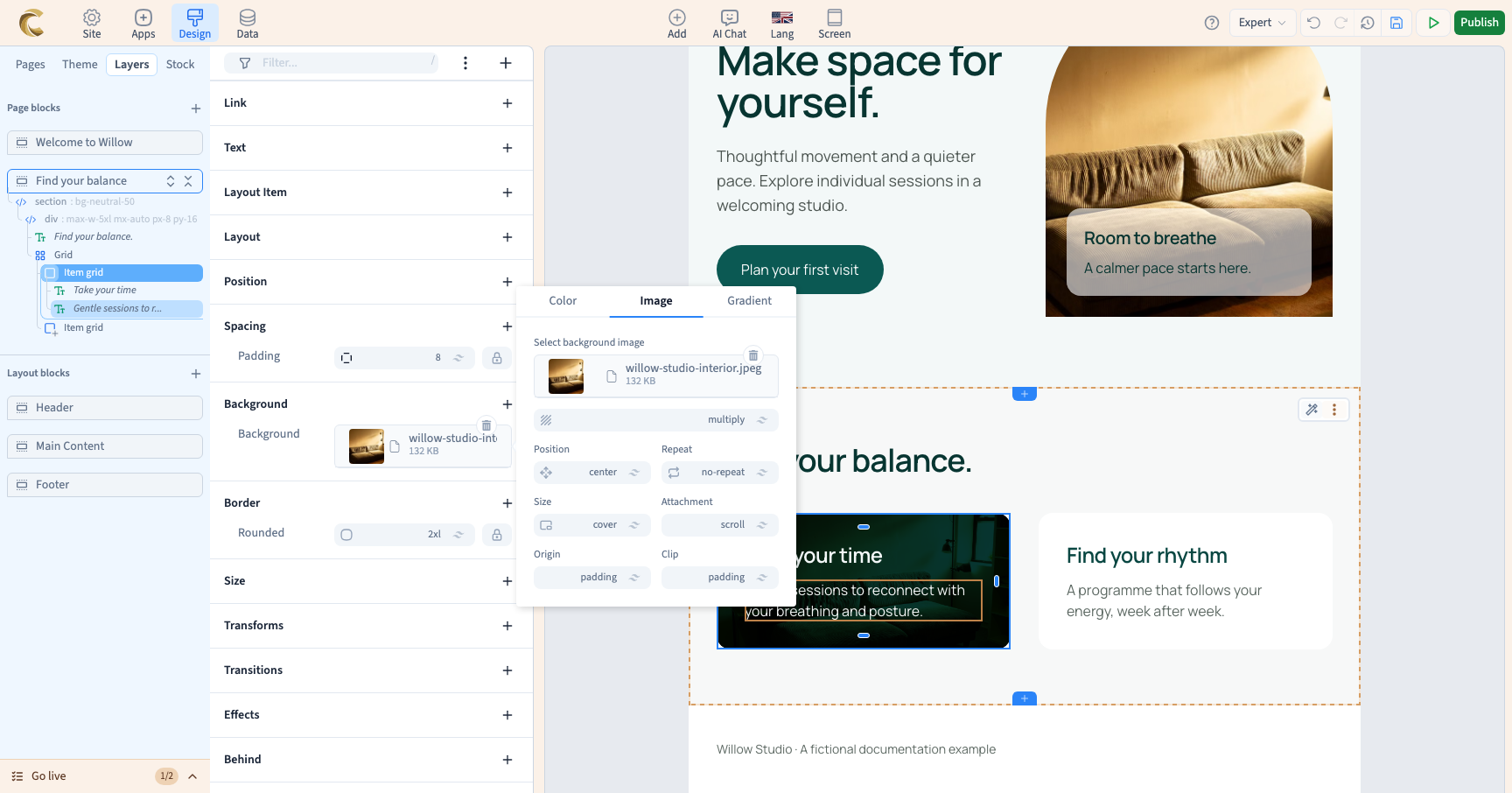
The blending control combines the image with the background colour. Multiply can darken a photograph when combined with a dark background; a white background does not provide that darkening. The example uses Multiply over the prepared dark background to keep its light text readable. The mode alone cannot guarantee contrast.
Check text against both light and dark parts of the picture. Choose a calm image, change its crop or adjust the background and text colours when necessary. Avoid placing a long paragraph over a busy photograph.
5. Understand the additional settings
Attachment controls whether the background follows the element, its scrolling content or the viewport. Test viewport-fixed backgrounds in the mobile browsers you target, where behaviour can differ.
Origin chooses the reference box for drawing the background. Clip chooses the boundary of the painted area. Border, padding and content choices determine which spaces the background covers. These settings are separate from a transformation's origin.
The demonstration checks attachment, origin and clip using simple values. Start with straightforward settings, validate the crop, then refine them if the design needs it. The second clip continues from the chosen photograph, compares Contain and Cover, then checks the phone frame.
Could not play. Try the video controls.
6. Check mobile
Choose the phone frame from Screen. Inspect the visible subject, text contrast and container height. Cover may crop more when the container becomes narrower. Use a screen rule if the crop should change; changing only the preview frame does not create that rule.