
Set borders, rounded corners and rings
A border outlines the card. Rounded corners change its shape. An outside ring adds a separate highlight around it. These settings can work together, but have different roles.
1. Add a border width
Select the whole card in Layers. In Expert → Border, add Border with the group's + if needed. Start with a thin border: one or two pixels often separate a card from its background. A stronger line suits a deliberate graphic effect.
Grouping can apply the value to all sides, an axis or individual sides. Changing grouping applies a shared value, so inspect the sides afterwards.
2. Set style and colour
After defining a width, add the border style and colour. Solid gives a continuous line; dashed and dotted give discontinuous ones. A no-border choice can leave other values in the panel without showing a line.
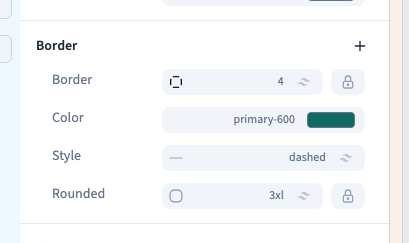
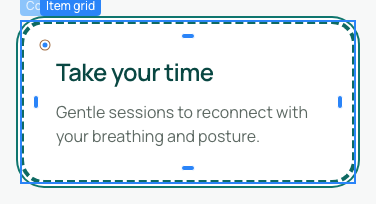
Border colour is separate from background and text colour. Use a theme colour for a coherent result. If the line is invisible, check width, style and its contrast with the background. The demonstration uses a four-pixel dashed border, then changes its colour.
Could not play. Try the video controls.
3. Round the corners
Find Rounded and choose a preset. Small values soften corners; larger ones make the shape rounder. Grouping controls can distinguish individual corners. A card can have rounded corners without a visible border.
Rounding the container does not necessarily clip content that extends outside it. If an image exceeds the corners, inspect Overflow too. Avoid clipping useful content merely for an aesthetic effect.
4. Add an outside ring
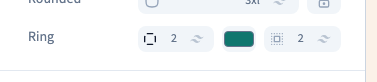
Ring provides a separate outside contour, with width, colour and offset. Offset leaves space between the element and its ring. It does not replace the border.
The demonstration adds a ring, chooses its colour separately and sets a small offset. This is useful for selection or emphasis. If combined with a shadow, check that the effects remain clear rather than crowded.
5. Check the condition and remove settings separately
Check whether you are editing the base value, a screen rule or a state such as hover. A thick border can reduce room for text on mobile.
Remove settings individually to understand their contribution. Removing the colour does not necessarily remove the width; removing a conditional value may reveal the base value. Use Undo to recover an earlier experiment. Save and inspect the card in preview.