
Create a background gradient
A gradient changes the background between several colours. It can add depth to a card or section without making its content harder to read.
1. Activate the gradient
Select the container in Layers. In Expert → Background, open its background and choose Gradient. The builder applies a starting gradient. When moving from a solid colour, it can reuse that colour as the first stop and pair it with another theme colour. Inspect the result before continuing.
This changes the element background. A gradient applied to the letters themselves uses separate text settings.
2. Set the direction
Direction sets the order in which colours run across the surface. A horizontal gradient follows a row; a vertical gradient follows the card height. Diagonal directions give a more pronounced effect.
The demonstration changes the horizontal starting gradient to a vertical one. The card's structure and content stay intact.
Could not play. Try the video controls.
3. Choose colours and positions
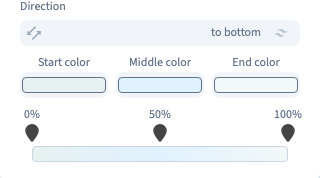
The sub-editor uses From for the beginning, optional Via for an intermediate colour and To for the end. Open a stop's colour selector and choose a theme or custom colour.
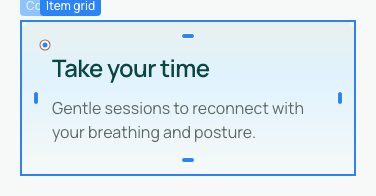
Start with two related colours. Via adds a third shade to pass through; removing that stop does not remove the whole background. The English example uses light shades behind dark text.
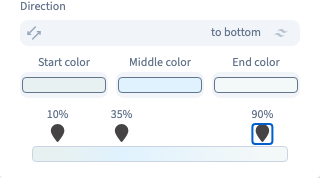
Reopen Background and Gradient to find the three position handles below the colours. Each handle displays a percentage. Drag it, or select it and use the arrow keys to move in five-percent steps. Allow the value to settle, then inspect the whole card.
The demonstration places the stops at 10%, 35% and 90%. These positions change the distribution of colours, not the placement of the text.
4. Check the whole text area
A title may be readable at the start of a gradient but disappear near the other end. Check the background under every line, including wrapped titles on mobile. Keep sufficient contrast and avoid strong variations behind long paragraphs. A solid colour may be more suitable for a reading area.
5. Return to a solid colour
Reopen Background and choose Color. This removes the gradient components and restores a background colour, which you can then change. Use Undo to recover an exact previous experiment.
To remove a background value, use its removal command on the correct condition line. A base rule may become applicable again. Save and compare widths before publishing.