
Choose a colour in an element setting
Text colour, background colour and border colour are different properties. Start by opening the right property on the right element.
1. Open the colour selector
In Expert, select the target and click the colour value in the relevant group. For a heading, use Color in Text. The selector shows the colours available for that property.
Could not play. Try the video controls.
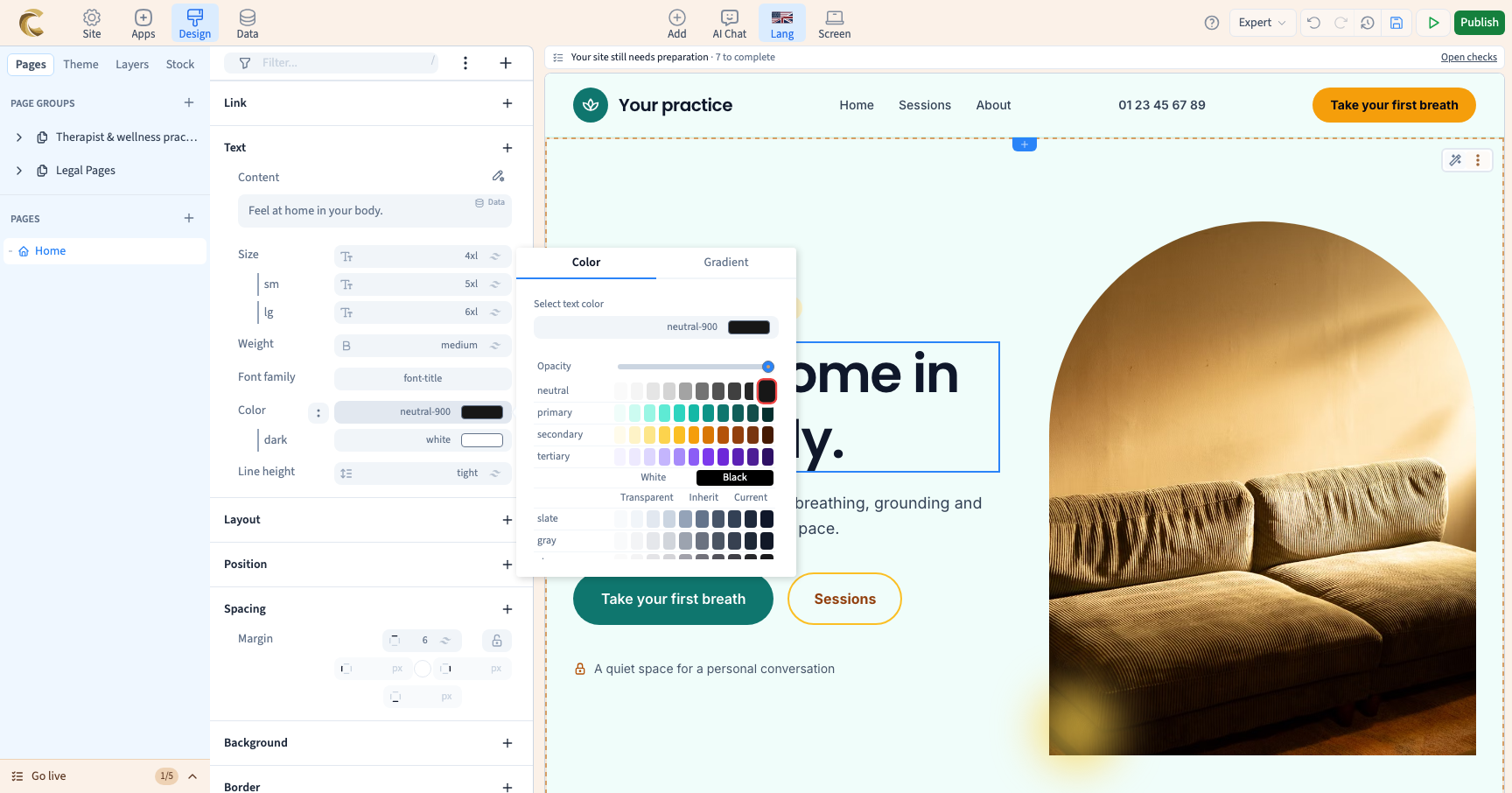
2. Choose a theme colour
A named theme colour helps keep a consistent identity. Use the roles and shades of your palette rather than accumulating similar fixed colours. A primary theme colour stays related to the theme; a fixed colour serves a particular need.

3. Use a custom colour
Where available, choose a custom colour visually or enter its value in the dedicated field. This does not require editing CSS classes. To colour only a few words, use the formatting of selected text: colouring an entire element has a different scope.
4. Adjust transparency
If the selector offers opacity, adjust it and inspect the result against the real background. Transparent text can become hard to read. Colour transparency is not necessarily the opacity of the whole element and its children.
5. Check readability and scope
Check the text against its background, on mobile and in relevant states. If a hover or screen rule exists, check it too: changing the base colour does not remove that rule. Use Undo to restore the previous colour, or remove the local value when that is your goal.