
Add a setting and use quick choices
You can add a setting with the visual controls. The + buttons offer properties compatible with the selected element.
1. Check the target and condition
In Expert, select the element. Remove a condition filter if you want to work on the base value. An active condition may direct the new setting to that condition: check its badge before choosing a value.
Could not play. Try the video controls.
2. Open the general list
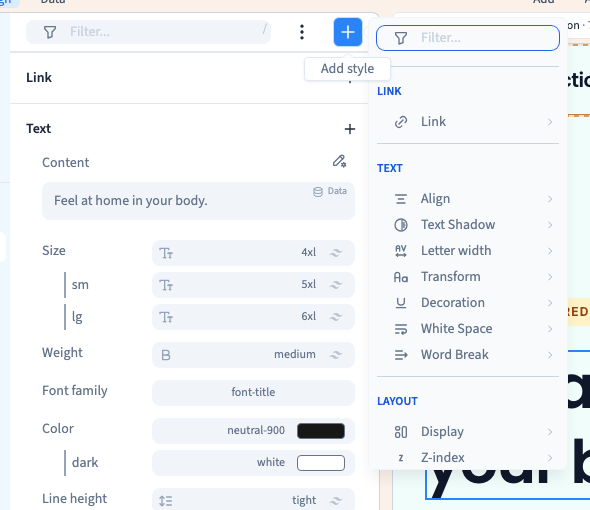
Click + beside the search and browse the available groups. The list depends on your target. If an option is missing, check whether it already exists, is hidden by a filter or belongs to the parent element.
3. Use the plus button in a group
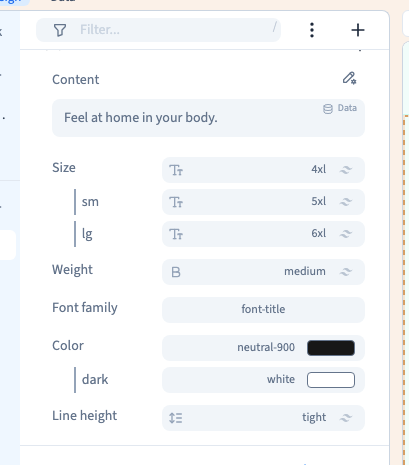
The + in a group such as Text limits choices to that group. This is quicker when you know the kind of setting you need. Choose the property: its editor appears with an initial value appropriate to that control.
4. Use a quick choice
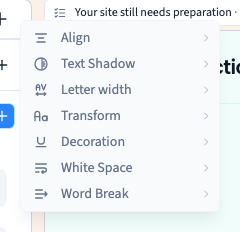
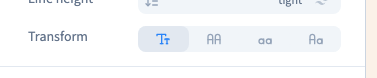
Some properties have a submenu of values, buttons or colours. Move over an option to inspect its choices. A hover preview, when available, helps you compare; click a choice to apply it. Not every property has a quick submenu.
5. Check and correct the result
Look at the preview and read the value in the panel. Check existing conditions too: a screen rule may still take priority over a new base value. Use Undo or remove the particular value to go back, then check the result.