
Remove a value and understand what takes over
Removing a value does not delete the element. It removes the targeted setting, allowing another value to take over. The result may therefore look different from a visual reset.
1. Identify the value
Select the element and find the property. Decide whether you want to remove its base value or a conditional row. A hover value, a mobile size and a base value affect different contexts.
Could not play. Try the video controls.
2. Use the value removal control
On the relevant row, use the control that removes the value or condition. Keep it separate from deleting an element or section. If unsure, note the value before removing it so you can compare afterwards.
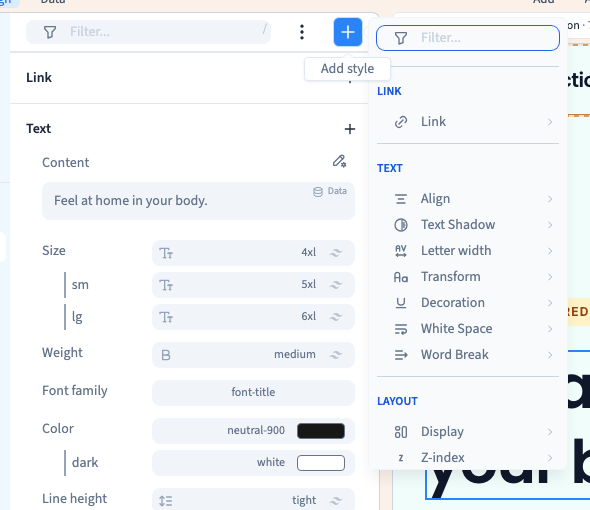
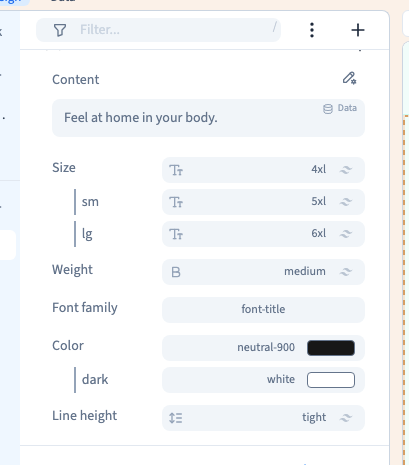
3. Understand the value that returns
The preview may now use a base value, another applicable condition, the theme or an inherited value. For example, removing an lg size can leave a lower-breakpoint rule in effect. This does not mean removal failed.
4. Distinguish a binding from a fixed value
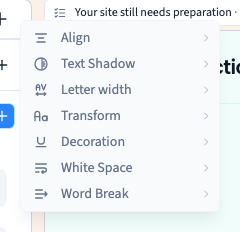
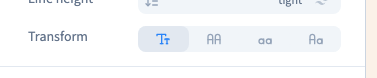
A property linked to a variable may require removing that binding before choosing a fixed value. Attributes, styles and bindings have their own controls. Check the label and property instead of assuming one removal command handles every case.
5. Check, then undo if needed
Look at the affected frames and read the remaining values. If the result is unexpected, use Undo immediately and check the restored state. Save the state you want to keep. You can do this with the visual interface.