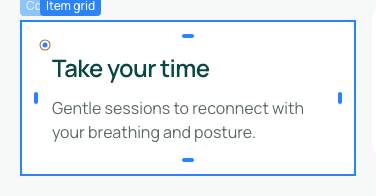
Move, rotate and scale visual appearance
A transformation changes appearance without automatically rearranging neighbouring elements. Use it for a decorative shift or tilted card. Use layout controls to organise columns or redistribute content.
1. Open Transformations
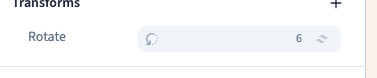
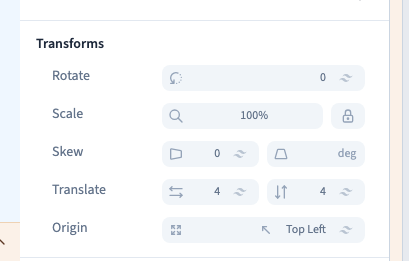
Select the element in Layers or the preview. In Expert, open Transforms and add the required setting with +. Start with one transformation, understand its effect and then combine settings if needed.
2. Rotate or skew
Rotate turns the whole element, including its background, image and text. Choose a small angle in degrees and return to zero to compare.
Skew slants the element along a horizontal or vertical axis. It is different from rotation: the sides become oblique. Apply it moderately to text to preserve readability. The demonstration compares a small rotation and a horizontal skew.
Could not play. Try the video controls.
3. Set scale and origin
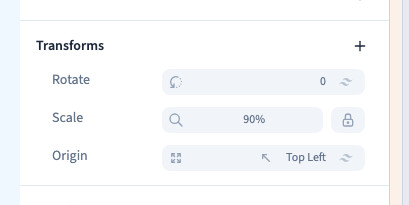
Scale visually enlarges or reduces the element. 100 means normal size; 90 makes it smaller. Its original layout space remains, so neighbours do not automatically move into the apparent gap.
Origin sets the point around which the transformation acts. The centre suits many effects. The top-left corner can anchor a shrinking card at that corner. Origin alone does not shift the element; it becomes visible with rotation or scale.
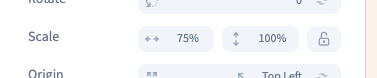
The scale control can separate its two axes. Different horizontal and vertical scales can stretch a photograph, so use this intentionally. The demonstration separates the axes, compares them and returns to a shared normal scale.
4. Shift appearance on two axes
Translate offers horizontal and vertical coordinates. Positive values move right or down; negative values move in the opposite direction. Percentage translations refer to the transformed element's dimensions rather than its parent's width.
To move a column and make neighbours follow, change layout or spacing instead. Translation is appropriate when the element should retain its original layout space. The demonstration shifts the card on both axes and checks that its layout dimensions remain unchanged.
5. Combine and inspect
Transformations can combine. Inspect each addition: a rotated and shifted card may overlap a neighbour or exceed its container. Remove just the relevant value to compare, or use Undo to recover the previous gesture.
Check dimensions, clickable areas and the mobile result. If part disappears, inspect the parent's Overflow too. A fixed transformation does not itself create hover movement or an animation.