
Search and filter element settings
Search and filters make the settings panel shorter. They do not remove settings from your site. If a property seems to have disappeared, check these filters first.
1. Search by name
In Expert, select the element and click Filter…. Try a simple word such as font, colour or margin. Search uses the words associated with settings, so several related properties may appear. Clear the field to see the groups again.
Could not play. Try the video controls.
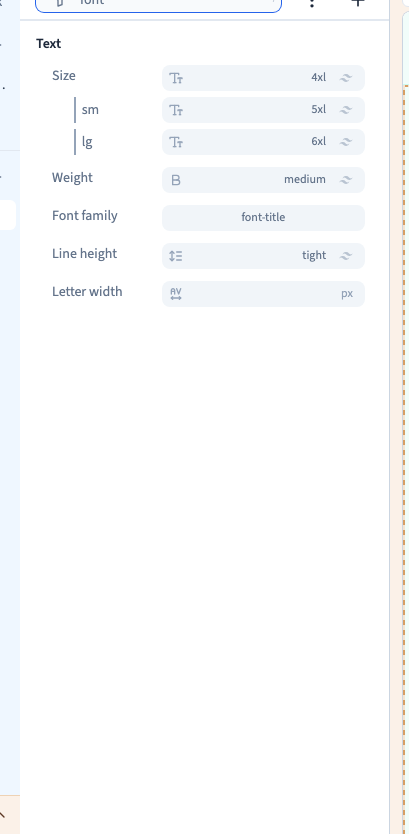
2. Choose a category
Open the three-dot menu beside the search. Categories separate visual styles, content and parameters. Choose All to remove that restriction. A badge indicates an active category; its small cross removes the filter.

3. Filter by an existing condition
The same menu lists conditions already used on the element. Choose one to focus on its settings. This filter does not create a new condition or resize the preview. Remove the condition badge to see the full list again.
4. Show settings without values
The menu preferences include an option to show undefined styles. This reveals controls that do not yet have a value on the target; it does not assign them a value. Collapsing conditions shortens their rows without deleting them.
5. If search finds nothing
Clear the word, remove the badges and choose All. Then check your target in Layers. A text setting may not apply to an image; grid settings belong to its container. Look for one function at a time, then check the result in the preview.