
Change a template style or one local use
A template supplies a shared appearance to several uses. Decide whether a change should affect the original model or just the selected use before editing it.
These Expert controls appear when a supplied element already uses Communik's internal template mechanism. Creating this kind of internal template is not offered to every account. To build your own reusable elements, use components and their properties.
1. Recognise a template element
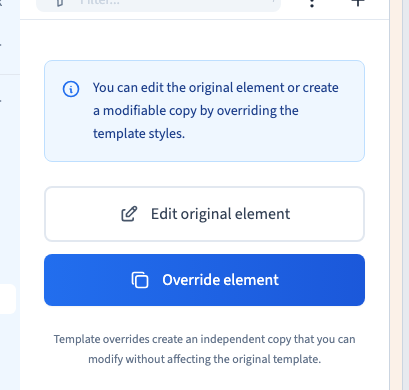
Select the element. Its panel explains that it comes from a template and offers Edit original element and Override element.
An override is a local replacement for the model's setting. It lets one card differ while the other uses keep their common appearance. It does not automatically make a complete independent copy.
2. Edit the original
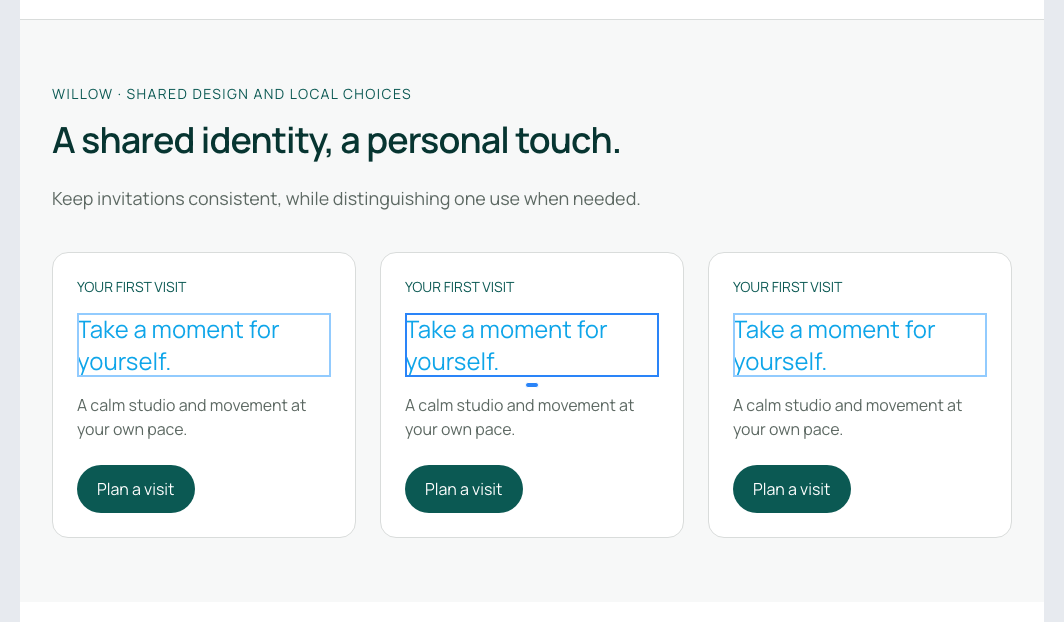
Choose Edit original element, then use the normal visual settings, such as text colour. Watch the other uses before saving.
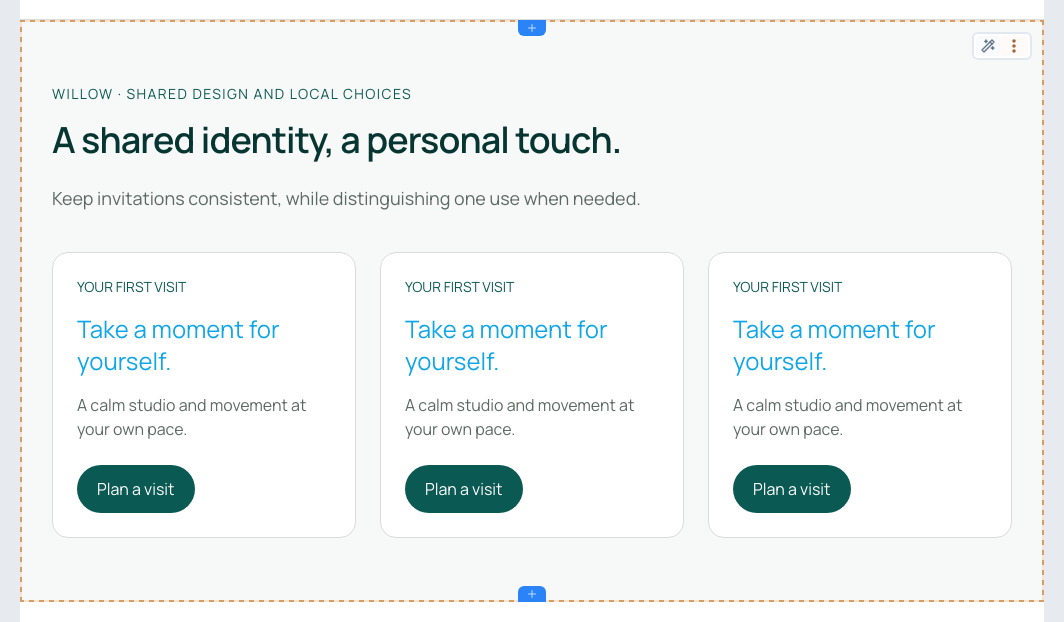
In the demonstration, the heading colour changes on all three cards. Choose this route for an intentional change to the shared appearance.
3. Customise one use
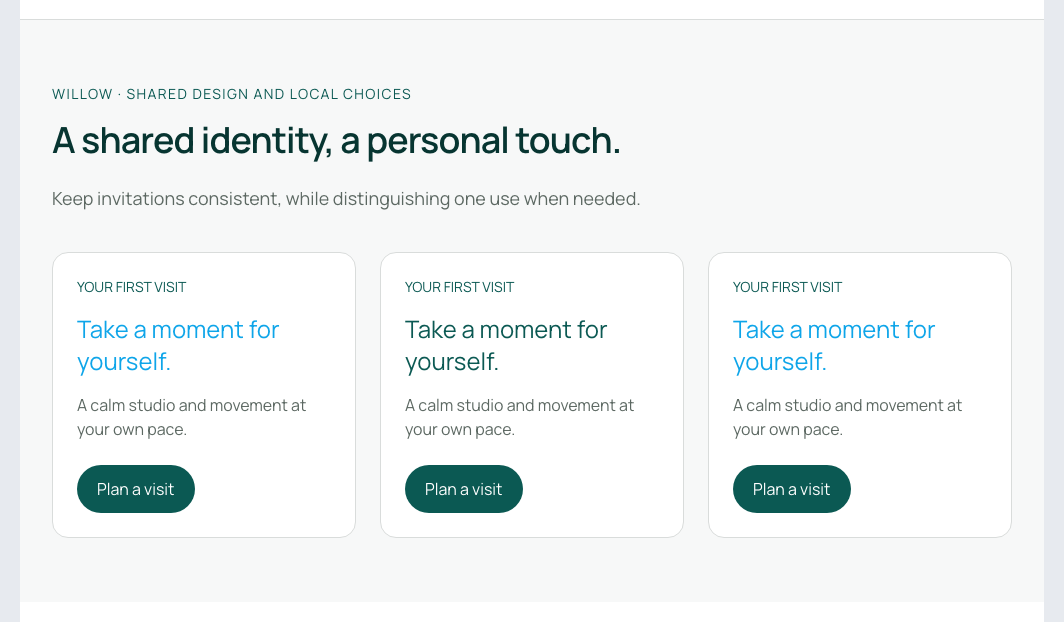
Select the intended use and choose Override element. Add the required local setting with its group's + if it is missing; for example, Text > Color. Choose a value and compare the other cards.
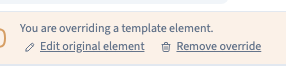
The panel indicates that you are overriding a template element. Only the selected use receives this local colour. Other settings and content can still rely on the template, so check the scope instead of assuming the entire card was detached.
Use component properties when your main need is to vary content rather than replace a template style.
Could not play. Try the video controls.
4. Remove the override
Choose Remove override in the local element's banner. That use follows the original again; the original element remains present.
Review the local changes you want to keep before removing the whole override. If you only want another local colour, change its value instead.
5. Check persistence and the published page
Save and reload. Compare the original, a locally customised use and an unchanged use. Check the content, links and visual settings.
The verification covers four states: all uses following the original after a reset; one local colour; a later original change that preserves the local colour; and removing that override so all uses follow the new original.
Inspect staging on desktop and phone. Cards may sit side by side on a wide screen and stack on a narrow one. Repeat these checks when using another template structure or setting.