
Connect a visual setting to a property
A property stores a value that more than one setting can use. Binding a text colour to a colour property makes the text follow that property's value instead of a separately selected fixed shade.
1. Select the element and setting
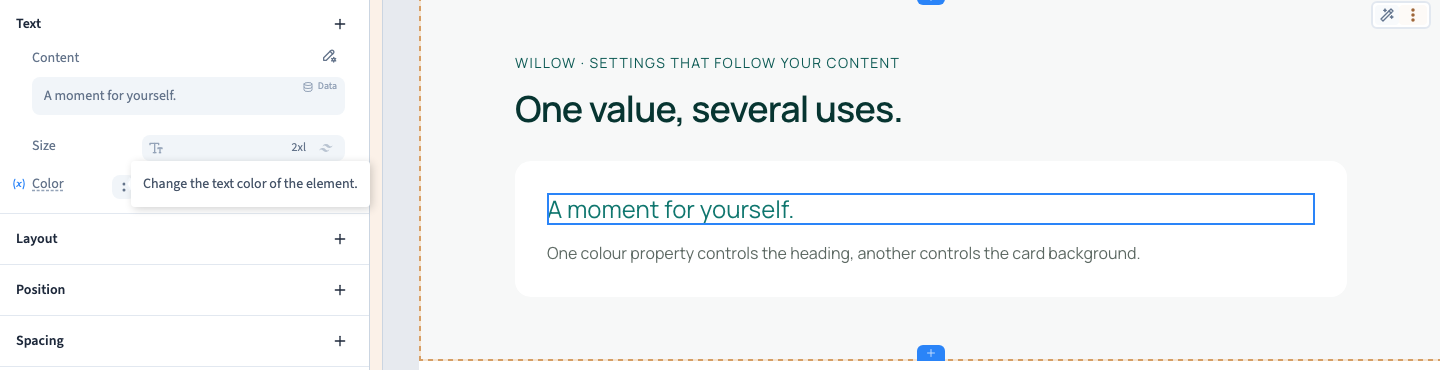
In Design > Expert, select the element and open the relevant visual setting. This example uses a heading's text colour and its card's background.
The containing block already has colour properties named headingColour and cardColour, plus a numeric duration property. Preparing these properties is a separate model-building step.
2. Choose a compatible property
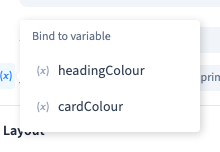
Hover over the colour control and open its small binding command. Choose headingColour for the heading. The control indicates an active binding and the rendered text follows the selected value.
The list filters properties by compatibility. A number such as duration is not offered as a colour. A plain text property is not automatically a colour either. Check the selected block and property type when an expected choice is missing.
Could not play. Try the video controls.
3. Return to a fixed value
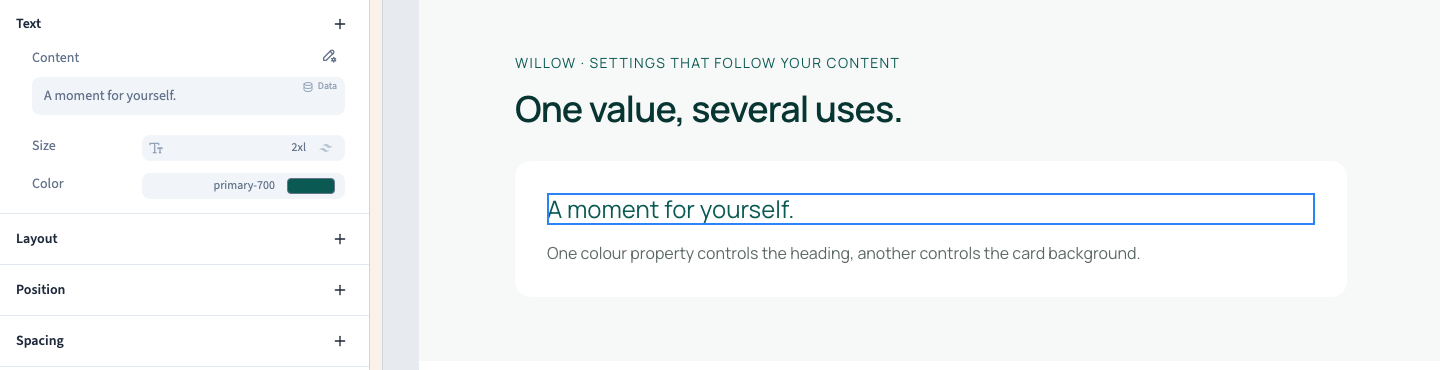
Reopen the active binding and remove it. Then select a fixed shade through the usual colour picker. Removing the binding does not delete the property or its other uses.
The demonstration chooses a fixed theme shade, then reconnects the heading. This makes the difference between a direct value and a value read from the model visible.
4. Bind another setting independently
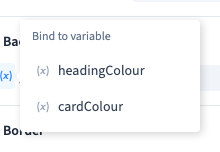
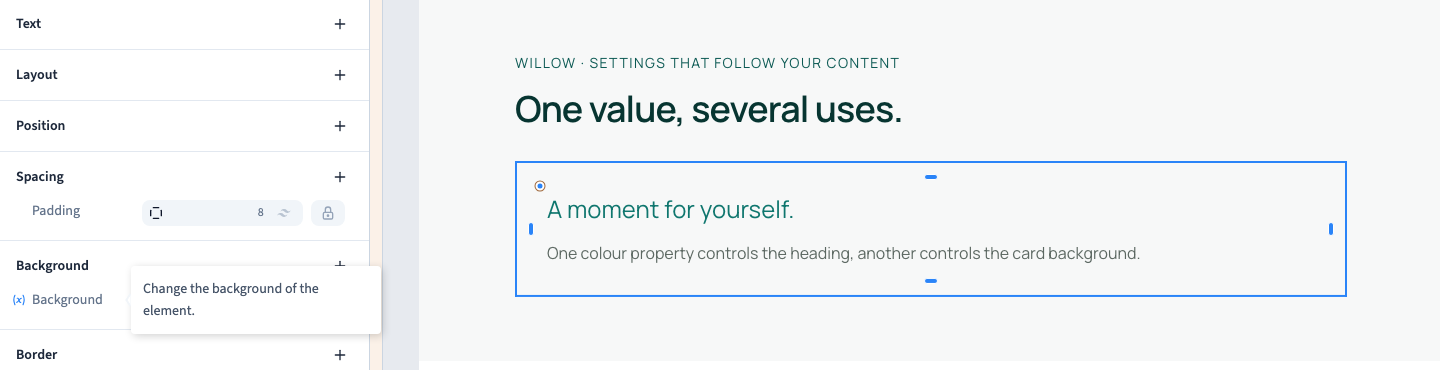
Select the card container and connect its background colour to cardColour. Check the text contrast immediately.
This binding affects the background setting. Padding, rounding and other container settings keep their own values. Two settings can follow different properties without becoming one combined style.
5. Understand an empty list
When the block has no compatible property, the binding command can be absent. The setting's condition menu may display No compatible variables available.
Check the block, property type and stored value. Use a fixed value until the model provides a suitable property. Creating a property does not automatically connect it to every element.
6. Save and check propagation
Save and reload. Confirm the bindings and rendered colours. Change a property's value and check every element that reads it; an independently bound background should retain its own value.
Inspect staging on desktop and phone, especially contrast and long text. A binding connects one setting. It does not by itself create an animation, screen rule or CMS collection connection.
Continue
Prepare component properties · Understand shared template styles