
Configure a button, link or anchor
A link tells visitors where to go. Use a clear label: “Book a session” says more than “Click here”. Keep that label consistent with the destination.
1. Select the whole element
In Design, choose Expert and select the button, whole text element or image to make clickable. Open the chain icon in its Link settings. These are visual controls; no code is required.
A link on selected words is configured through inline text editing. Menu destinations are configured in each menu entry.
2. Choose an internal page
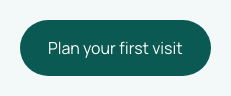
Open Internal, then select a real page from the list. The recording temporarily connects “Plan your first visit” to the studio page to demonstrate the change. Choose a destination that matches your own label.
Save and reopen the page to check persistence. The floating shortcut to the linked page opens that page for editing. To change the button's destination, use the Link settings.
Could not play. Try the video controls.
3. Enter an external address
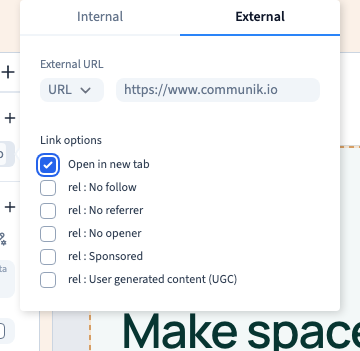
Choose External, then URL and enter the full address, for example https://www.communik.io. An existing internal destination can be replaced with an external one.
In Link options, Open in new tab keeps the current page available. For pages on your own site, the same tab is usually simpler. Uncheck the option to return to the same tab, then save and reopen to verify it.
No follow, No referrer, No opener, Sponsored and User generated content (UGC) describe the relationship with the destination. Keep ordinary settings unless you have a specific need. These options do not grant access to a private page.
4. Point to a section with an anchor
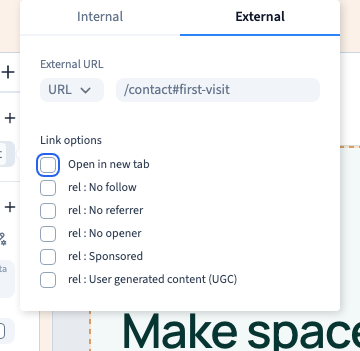
An anchor identifies an element in a page. /contact#first-visit points to the element whose identifier is first-visit on the contact page. #first-visit alone looks on the current page.
Enter the address in the URL field. The recording demonstrates the stored destination. Create or identify the actual target section and test the click before using it on your own site. Typing an anchor does not create that target.
5. Offer email or phone contact
Under External, choose Email or Phone. Enter the email address or, preferably, an international phone number such as +441234567890.
The click asks the device's configured application to handle the address. It does not send a message automatically. A computer without a suitable application may not open anything; test the devices your audience uses.
6. Add a supplementary title
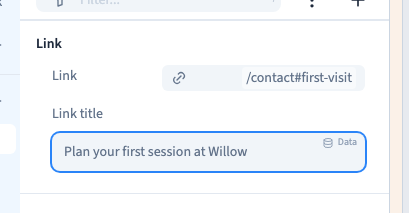
Use + in the Link group and choose Link title. Enter a short hint, such as “Plan your first session at Willow”. A desktop browser may show it on hover.
Keep the visible label clear without this hint. A tooltip should not contain essential information because phone and keyboard users may not see it.
7. Save and test the destination
Save and reopen, then try the element in visitor preview or on the published site. Check the reached page, anchor target and new-tab behaviour. Repeat at a phone width.
In the builder, clicking often selects an element. Lack of navigation while editing does not by itself mean a link is broken.
If navigation fails, check the address, target existence, access rights and whether another element covers the button. Data-driven destinations also depend on their collection context.